
¶ Installing the Controller Pack
This guide explains how to install and configure the software required to control in the French vACC.
By the end of this guide, you will have:
- EuroScope installed and configured.
- The French vACC Controller Pack installed.
- The latest FIR
NavData-Packagesinstalled. - TrackAudio configured for voice communications.
- A fully functional controller setup ready for observing or controlling on VATSIM.
¶ EuroScope
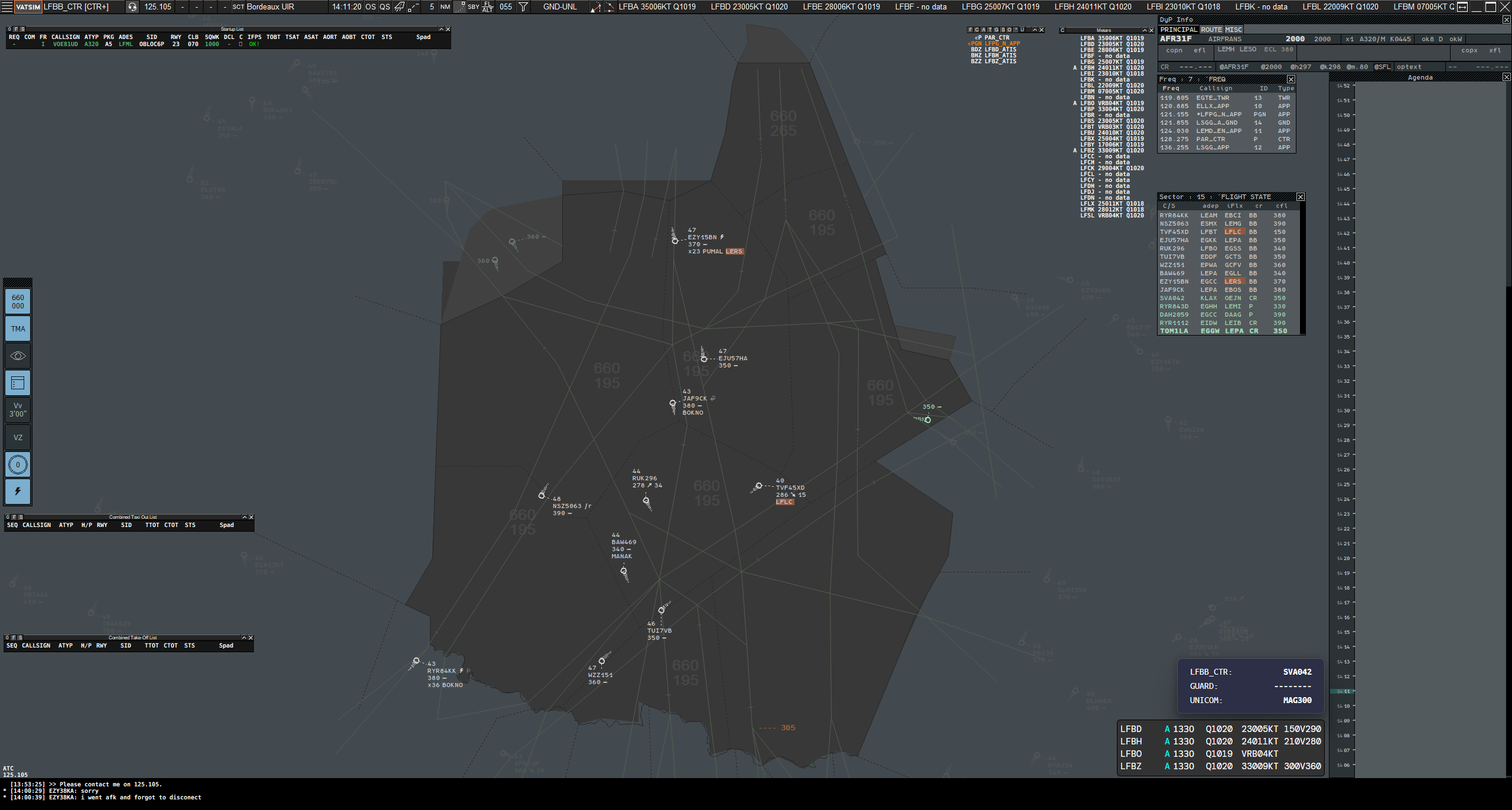
EuroScope is the radar client used by VATSIM controllers. It provides the radar display, flight data processing, and controller tools required to manage traffic.
The French vACC Controller Pack extends EuroScope with custom radar displays, profiles, plugins, and settings that replicate the French ATC environment.
¶ Prerequisites
Before installing EuroScope, make sure your system meets the following requirements.
- Operating System: Windows XP, Vista, 7, 10, or 11 (64-bit Windows 11 recommended)
- Microsoft .NET: The latest version of the Microsoft .NET Framework.
- Additional Components: Any remaining dependencies are installed automatically by the EuroScope installer.
¶ Installing EuroScope
The French vACC currently uses EuroScope 3.2.13.
- Download the EuroScope 3.2.13 installer.
- Run the installer.
- When prompted, install EuroScope to:
C:\Program Files (x86)\EuroScope
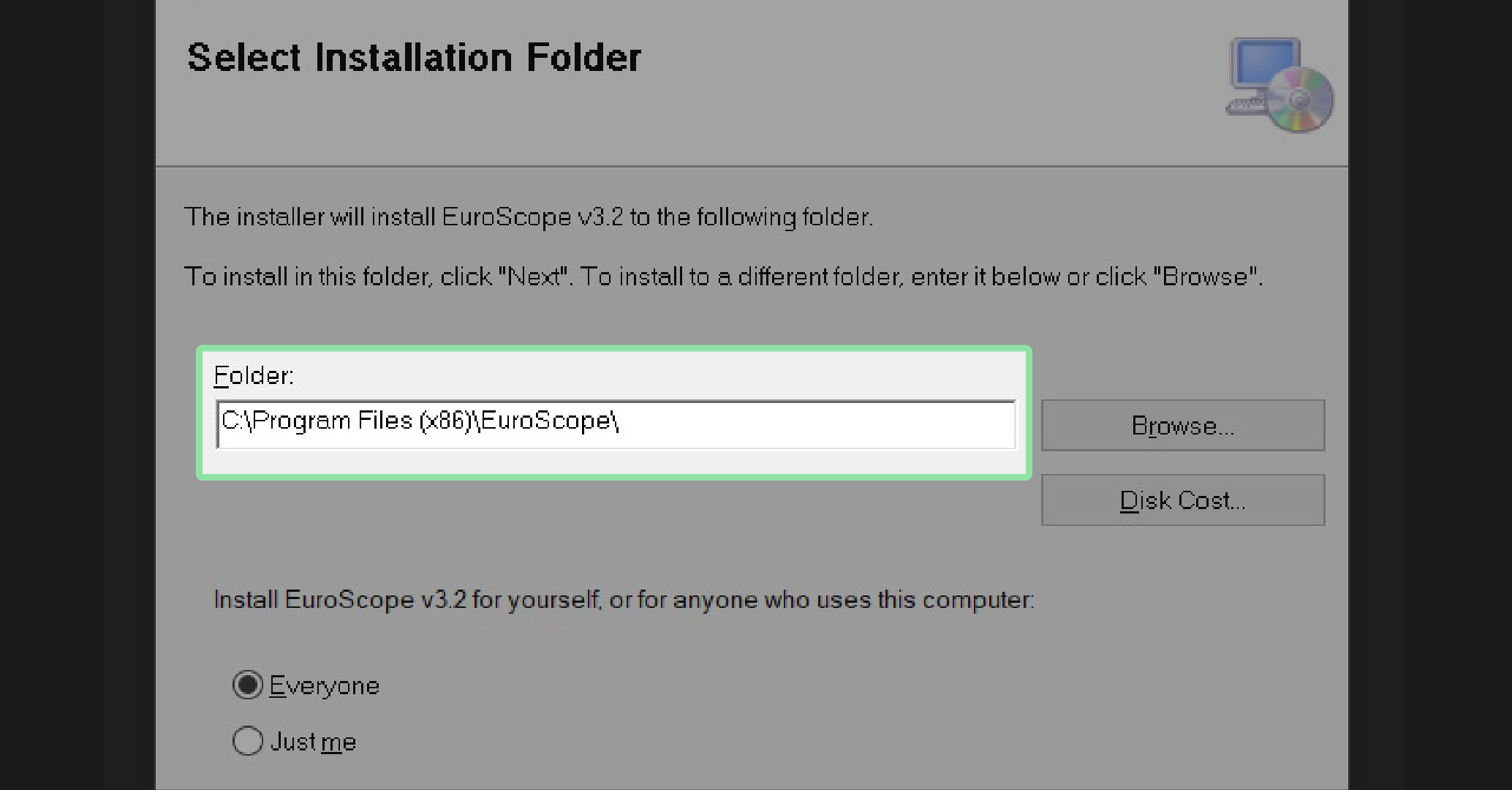
Using the default installation directory is strongly recommended, as many community tools expect EuroScope to be installed in this location.
¶ Disable Automatic Profile Loading
Before installing the Controller Pack, you must disable EuroScope's automatic profile loading.
If this option remains enabled, EuroScope will reopen the last profile used instead of prompting you to select a new one. As a result, the Controller Pack profiles will not load correctly.
- Launch EuroScope.
- Click OTHER SET on the menu bar.
- Clear Auto load last profile on startup.
- Close and restart EuroScope.
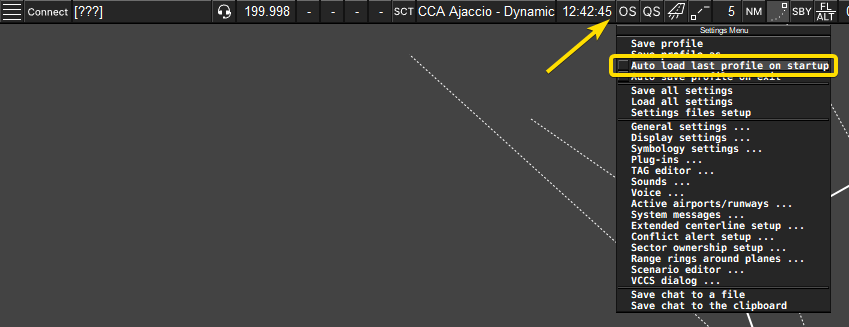
The next time EuroScope starts, it will ask you to select a .prf (profile) file.
A profile contains the radar displays, settings, plugins, and configuration required for a specific FIR or controller position. Examples include:
- CoFrance LFBB.prf
- CoFrance LFMM.prf
- EGA Paris.prf
- CCA Toulouse.prf
¶ Download the Controller Pack
With EuroScope configured, you're ready to install the French vACC Controller Pack.
The Controller Pack is the core of the French vACC controller setup. It extends EuroScope with everything required to observe and control in French airspace, including:
- Controller profiles (
.prf) - Radar display files (
.asr) - Configuration files
- Plugins
The Controller Pack does not include navigation data. Instead, each French FIR provides its own NavData package, which must be downloaded separately and installed alongside the Controller Pack.
¶ Download the Controller Pack Installer
Download the latest version of the Controller Pack Installer from the GitHub Releases page.
The installer manages both the installation and future updates of the Controller Pack. It also installs the required NavData-Packages into the correct directory structure and can automatically configure your EuroScope profiles with your VATSIM credentials.
¶ Download the FIR NavData Packages
In addition to the Controller Pack, you'll also need the latest NavData-Package for each FIR you intend to use.
Download the required packages from AeroNav GNG:
The NavData packages contain the navigation database for each FIR. They must be installed using the Controller Pack Installer and should not be extracted or copied manually.
¶ Install the Controller Pack
Once you've downloaded the Controller Pack Installer and the required FIR NavData packages, you're ready to install the Controller Pack.
Launch the Controller Pack Installer, then open the Install tab.
¶ Install the Controller Pack
To perform a new installation:
- Select the folder where you want the Controller Pack to be installed.
- Add the required FIR NavData packages by dragging them into the window or using Add Files.
- Click Install / Update.
Do not install the Controller Pack inside your EuroScope installation directory.
We recommend installing it in a separate folder, for example:
C:\French vACC\Controller Pack
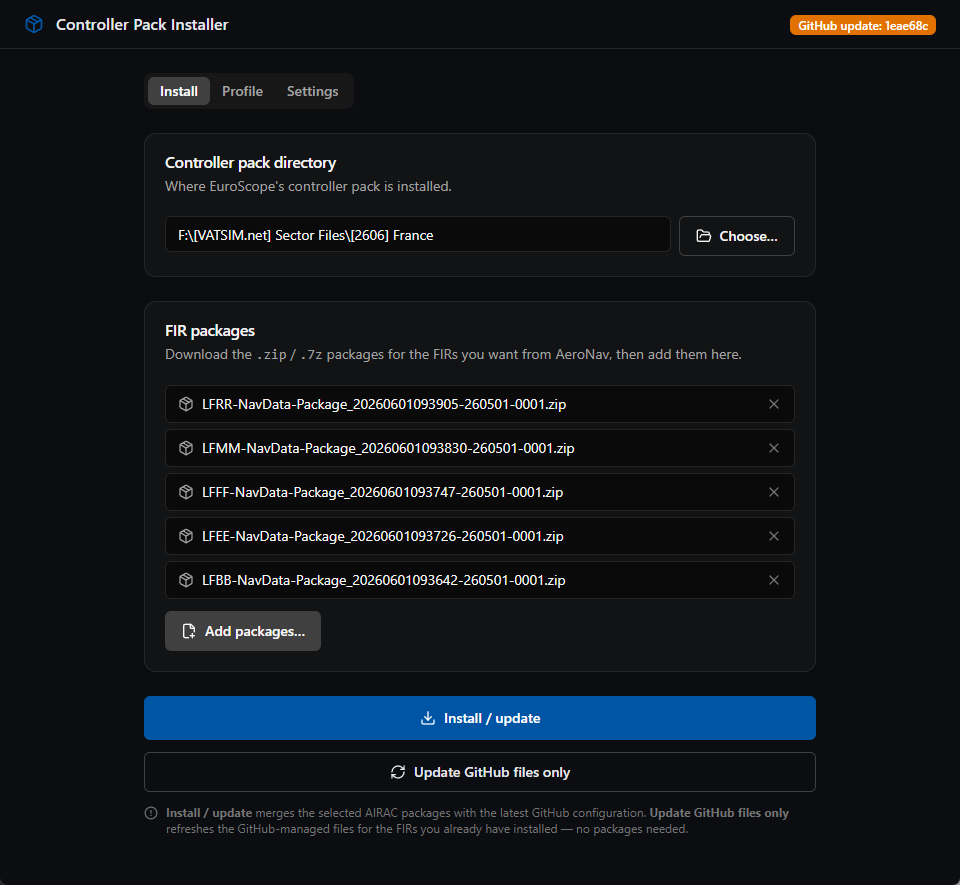
Before the installation begins, the installer displays a summary of the changes that will be made and explains how your existing configuration will be backed up.
Review this information carefully before continuing.
Once the installation is complete, your Controller Pack is ready to use.
¶ Configure Your Controller Profiles
The Profile tab allows the installer to automatically configure every controller profile included with the Controller Pack.
Simply enter your controller information once, and the installer will update every .prf file automatically.
The following information can be configured:
- Controller Name
- VATSIM CID
- VATSIM Password
- Controller Rating
- Discord Rich Presence
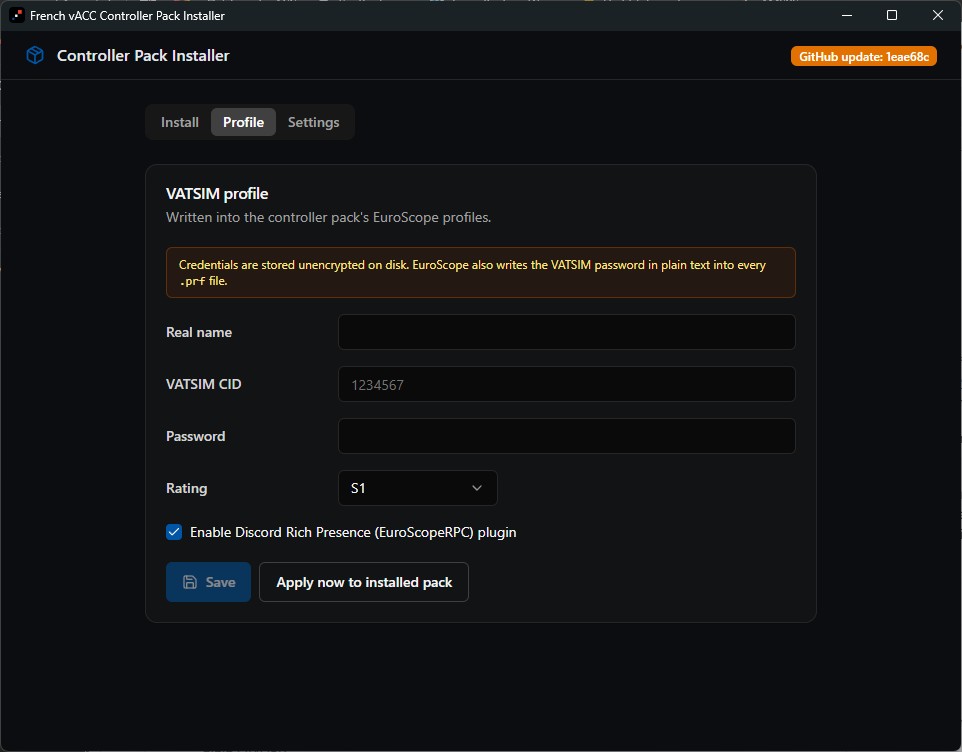
You only need to configure these settings once. They will be preserved when updating the Controller Pack.
¶ Keep the Controller Pack Up to Date
The French vACC regularly publishes updates to the Controller Pack.
There are two types of updates:
- AIRAC updates, released every 28 days, which include new FIR NavData packages.
- Controller Pack updates, which contain plugin updates, bug fixes, configuration changes, and other improvements.
¶ AIRAC Updates
To install a new AIRAC cycle:
- Open the Controller Pack Installer.
- Select your existing Controller Pack folder.
- Add the latest FIR NavData packages.
- Click Install / Update.
The installer updates both the Controller Pack and the selected FIR NavData packages while preserving your existing configuration whenever possible.
¶ Controller Pack Updates
Occasionally, the French vACC publishes updates that do not require new FIR NavData packages.
To install these updates:
- Open the Controller Pack Installer.
- Select your existing Controller Pack folder.
- Click Install / Update.
No additional downloads are required.
¶ Before You Launch EuroScope
Before continuing, make sure you have completed the following steps:
- ✓ Installed EuroScope
- ✓ Disabled automatic profile loading
- ✓ Installed the Controller Pack
- ✓ Installed the required FIR NavData packages
- ✓ Configured your controller profile
You're now ready to launch EuroScope for the first time.
¶ Launch EuroScope
You're now ready to launch EuroScope with the French vACC Controller Pack.
Start EuroScope. Because automatic profile loading was disabled earlier, EuroScope will prompt you to select a profile (.prf) file.
A profile defines the controller environment that EuroScope will load, including the radar displays, maps, plugins, and settings for a specific FIR or controller position.
Browse to your Controller Pack installation folder and select the profile that matches the FIR and position you want to observe or control.
For example:
- CoFrance LFBB.prf – Bordeaux FIR
- CoFrance LFMM.prf – Marseille FIR
- EGA Paris.prf – De Gaulle Approach, Tower, Ground, Delivery...
- CCA Nice.prf – Nice Approach, Tower, Ground, Delivery...
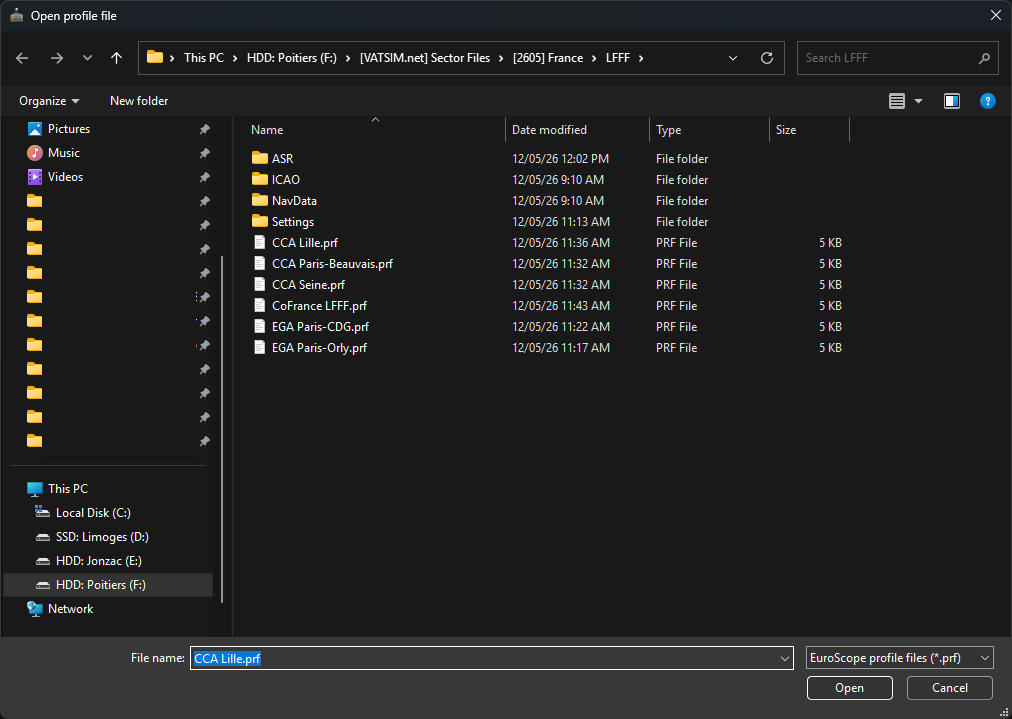
After selecting a profile, EuroScope will finish loading the Controller Pack and display the appropriate radar configuration for the selected position.
During the first launch, CoFrance may display an error indicating that a .toml file is missing.
This is expected. The file is created automatically the first time the Controller Pack is loaded and the warning should not appear again.
¶ Verify Your Installation
If the installation completed successfully, you should see:
- The correct radar display for the selected FIR or CCA.
- The CoFrance plugin loaded.
- The appropriate airport and radar display files available from the Recent Files menu.
- No missing file errors (except the first-launch
.tomlmessage described above).
If any of these items are missing, verify that:
- The Controller Pack is installed outside the EuroScope installation folder.
- The required FIR NavData packages were installed.
- You selected the correct
.prfprofile when launching EuroScope.
¶ CoFrance
CoFrance is the main plugin included with the French vACC Controller Pack. It transforms EuroScope into a realistic ATC environment by providing advanced controller tools, radar displays, and automation features tailored to French airspace.
You will often hear controllers refer to the "CoFrance Pack." This simply means the pre-configured EuroScope environment provided by the French vACC, which combines CoFrance with the Controller Pack's profiles, radar displays, maps, plugins, and configuration files.
CoFrance has been developed by the French vACC to reproduce real-world controller workflows as closely as possible within the capabilities of EuroScope.
Although the Controller Pack is ready to use immediately after installation, CoFrance offers many advanced features that you'll discover as you gain experience. We strongly recommend taking the time to read the user manual to get the most out of the plugin.
You can download the CoFrance User Manual from this link.

¶ Install TrackAudio
TrackAudio is the voice client used by VATSIM. It allows you to communicate with pilots and other controllers during your sessions.
EuroScope does not include a built-in voice client, so TrackAudio is required to use voice communications on VATSIM.
Audio for VATSIM is being phased out. The French vACC recommends using TrackAudio.
¶ Download and Install
Download the latest version of TrackAudio from the project's GitHub Releases page.
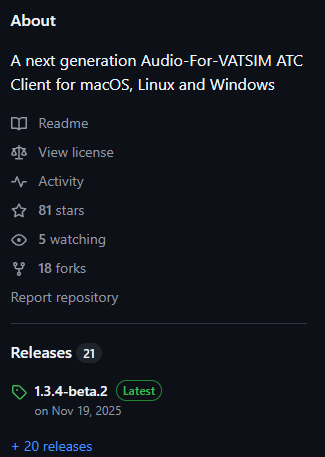
Run the installer, then launch TrackAudio once the installation is complete.
¶ Configure TrackAudio
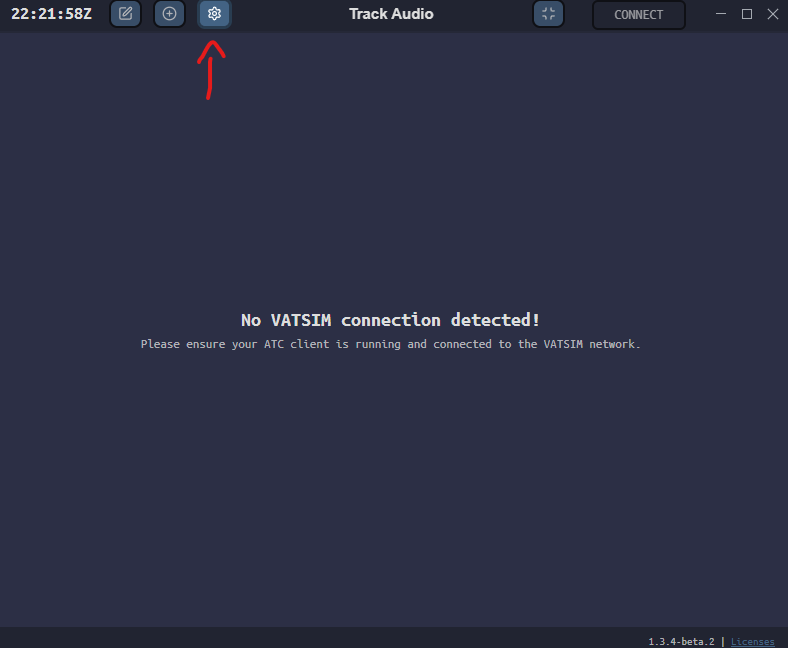
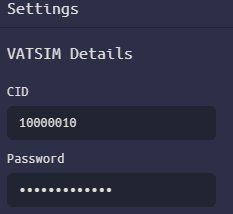
Click Settings (the gear icon) to open the TrackAudio configuration window.
Enter your:
- VATSIM CID
- VATSIM Password
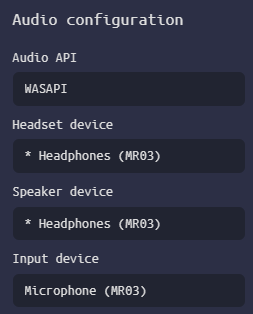
Next, select the audio devices you want to use:
- Microphone
- Headset or speakers
A good-quality microphone is strongly recommended for clear communications.
¶ Enable Radio Effects
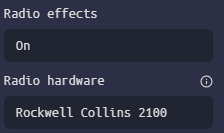
Enable the VHF Radio Effects option to simulate the sound of real VHF radio transmissions.
¶ Configure Push-to-Talk
Select the key you want to use as your Push-to-Talk (PTT) button.
For the Audio Rendering option, we recommend Rockwell Collins, although you are free to choose the rendering profile you prefer.
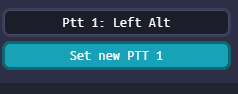
Choose a key that is not already used by another application. This key will be used whenever you transmit to pilots or other controllers.
¶ Test Your Microphone
Before connecting to VATSIM, verify that your microphone is working correctly.
Click Start mic test and speak normally. If your microphone is configured correctly, the level indicator should remain in the green range.
Once you're satisfied with the result, click Apply, then OK.
¶ Next Steps
Your controller workstation is now fully configured.
Before opening a control position, we recommend spending some time observing live traffic to familiarise yourself with the Controller Pack, CoFrance, and the French ATC environment.
Our guide on connecting as an observer explains how to join the network safely before your first controlling session.
Happy learning, and enjoy your time controlling in the French vACC!