
¶ VACS Software Guide
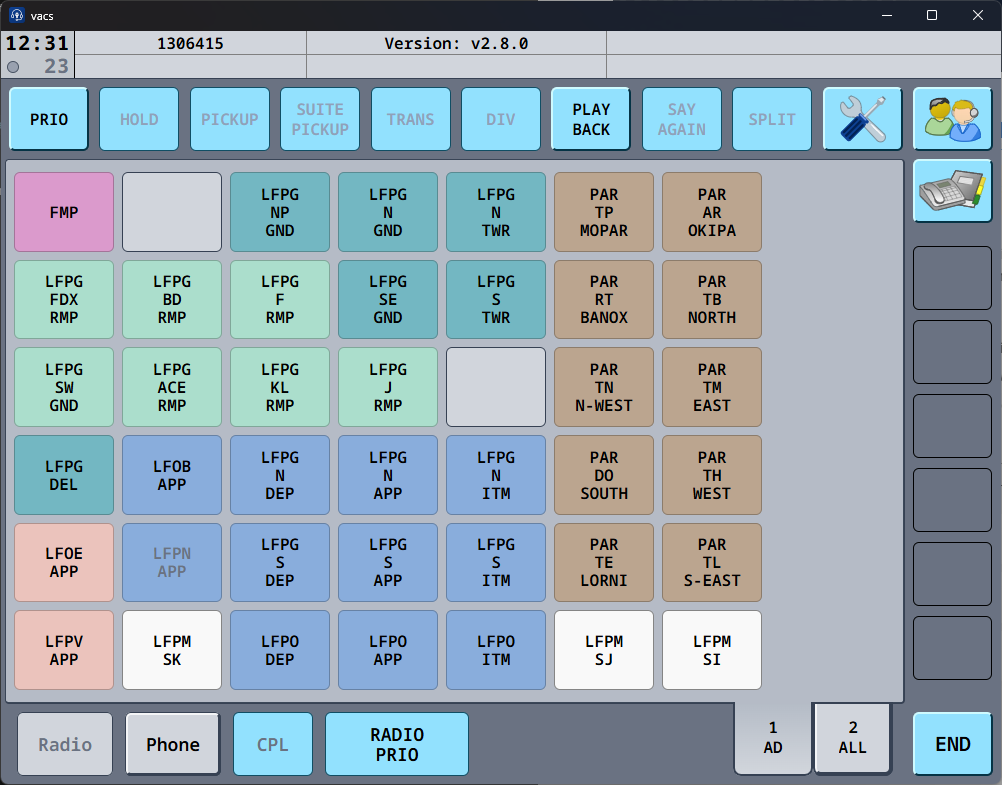
VACS (VATSIM ATC Communication System) is a voice communication platform used for direct coordination between controllers on the VATSIM network.
It provides a simple way to contact another controller by selecting the appropriate online position and initiating a coordination call. This makes routine coordination faster and more straightforward, particularly between different sectors or across FIR boundaries.
From 29 October 2026, VACS is a primary means of coordination alongside Discord. All controllers must remain connected and reachable on VACS while their position is open. Discord remains required for position handovers and for coordination between positions of the same tower environment or radar unit, with exceptions at Paris CDG, as set out in the Coordination Policy.
¶ Software Installation
VACS can be installed using the .exe installer available on the Releases page of the VACS GitHub repository.
VACS is cross-platform and is available for Windows, macOS, and Linux. Select the installer or package corresponding to your operating system from the available download options.
¶ Software Updates
VACS includes a built-in update system that will notify you whenever a new version is available and prompt you to download and install it. Keeping VACS up to date is strongly recommended to ensure access to the latest features, fixes, and improvements.
¶ Configuration
This section of the guide covers the various settings available in VACS.
When VACS is launched for the first time, you will be prompted to sign in using your VATSIM account. A VATSIM Connect page will open in your web browser, allowing you to authenticate securely with your VATSIM credentials.
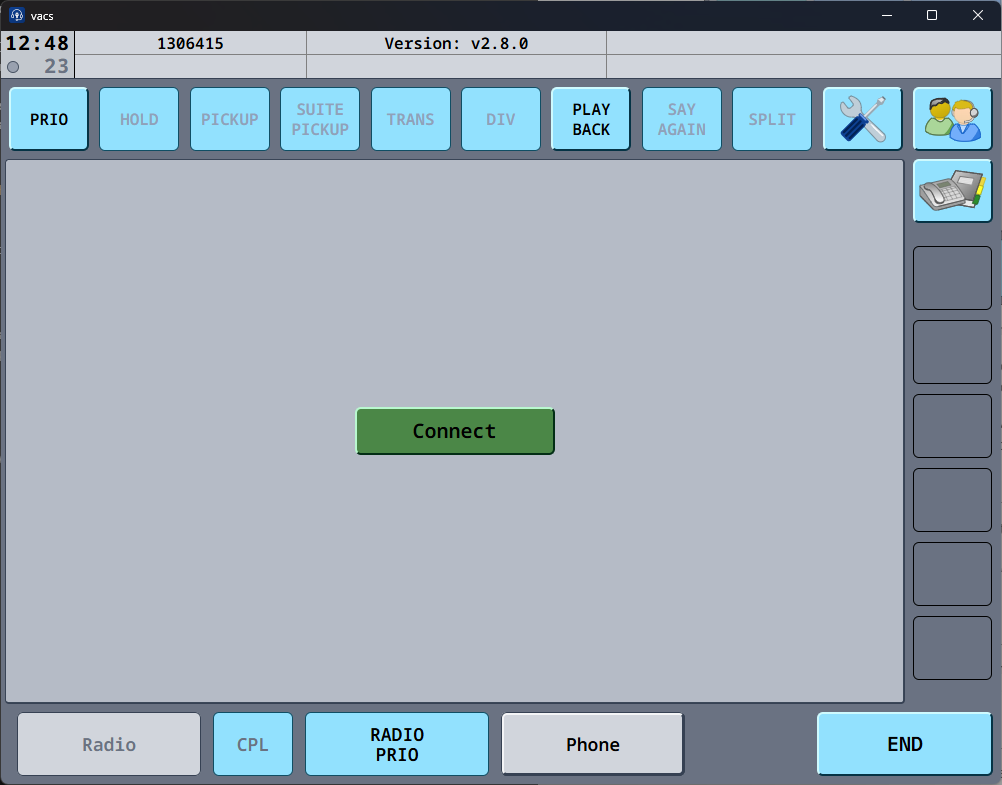
¶ Audio Settings
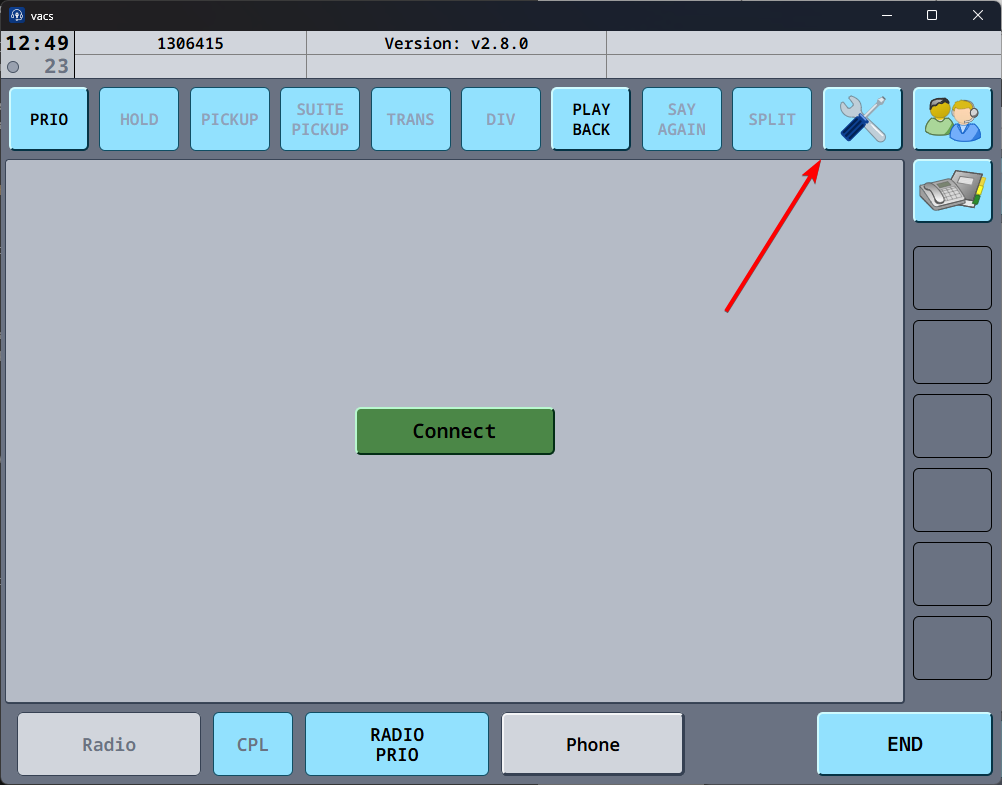
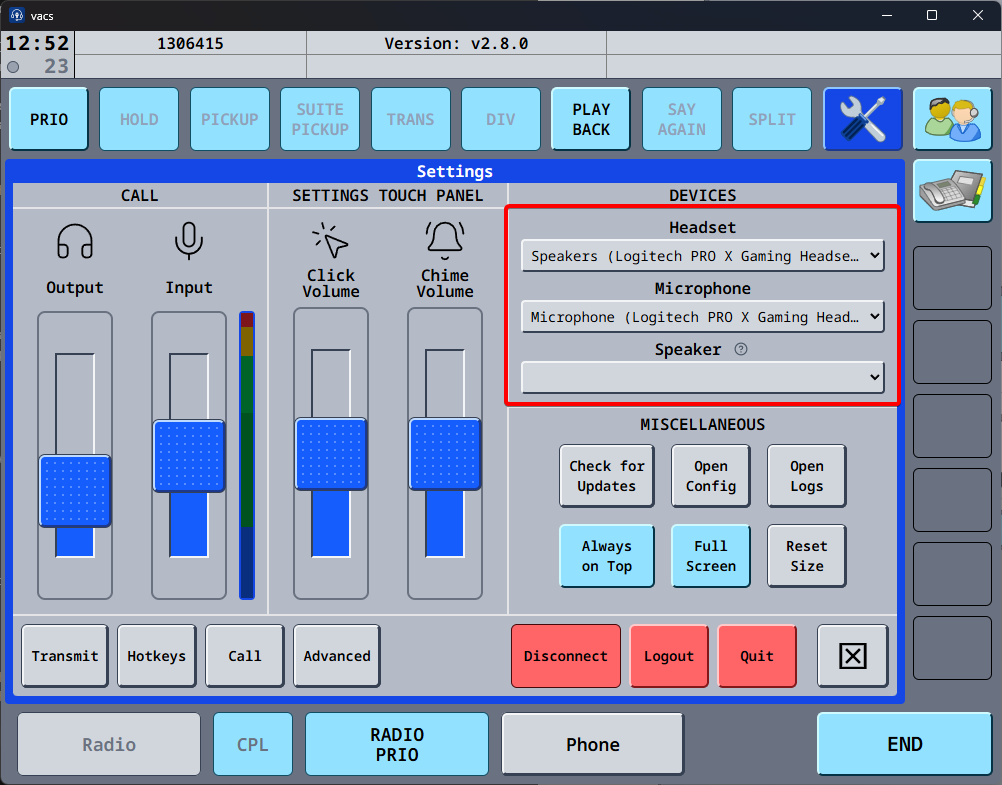
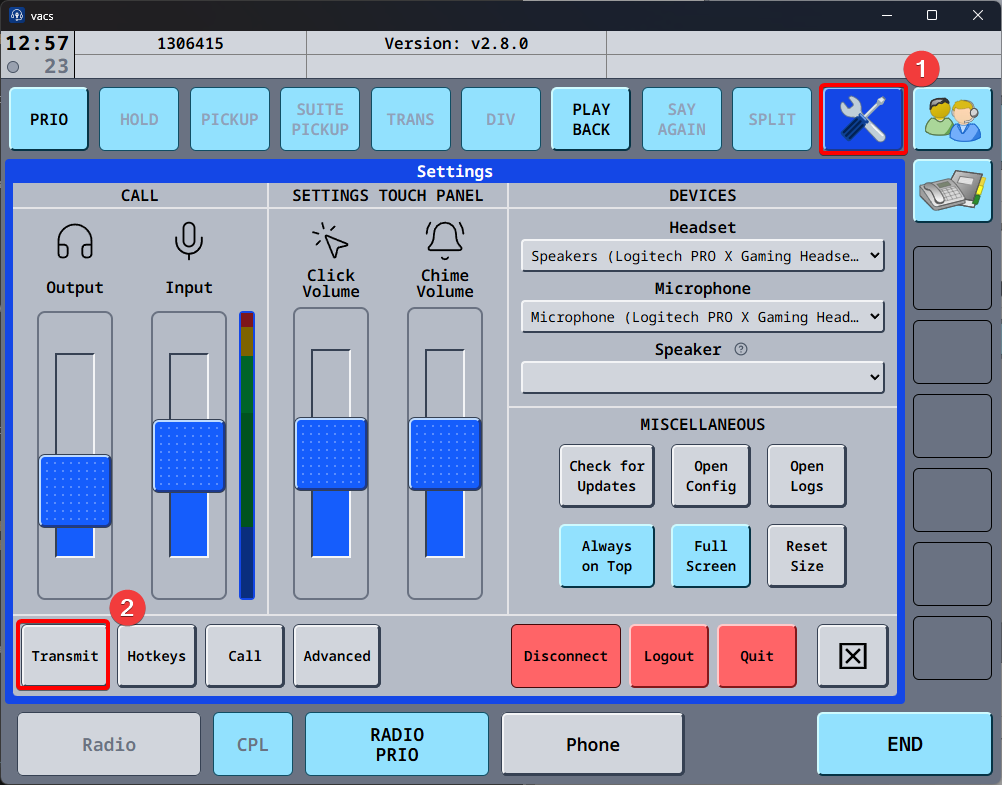
Before connecting to and using VACS, you should first configure your audio devices. Click the 🛠️ icon in the top-right corner of the application to open the VACS settings page.
¶ Trasmit Settings
VACS provides several Transmit Configurations that determine how your microphone behaves during coordination calls and, separately, how VACS interacts with your radio client.
The two main options are:
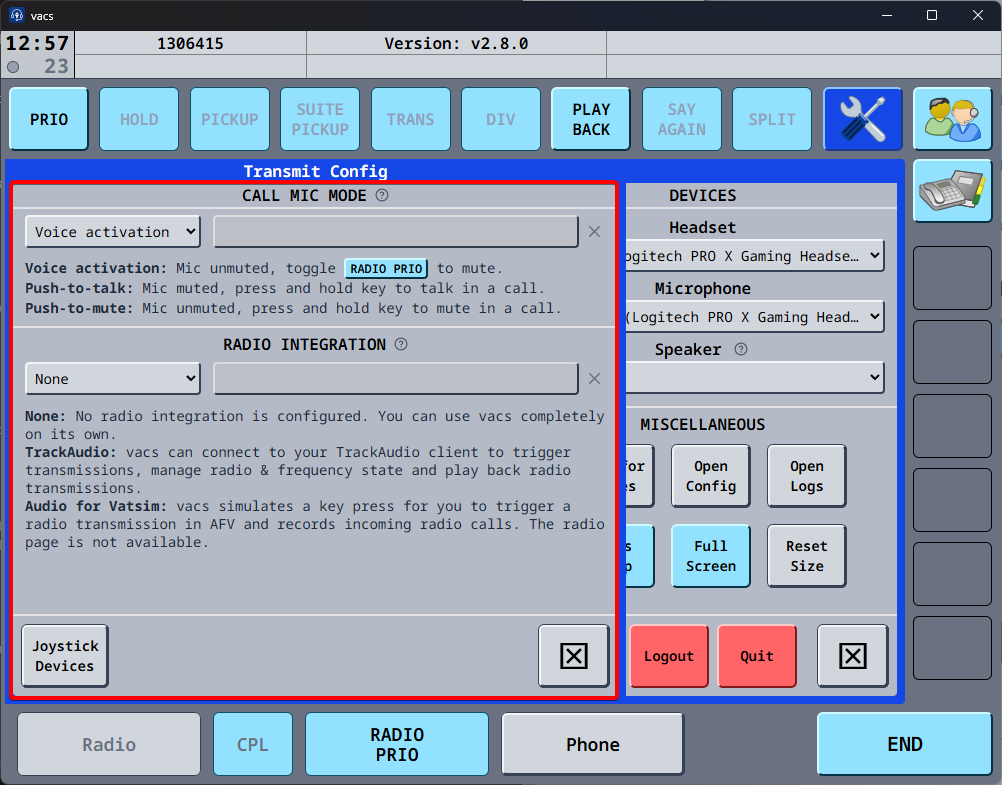
- Call Mic Mode — controls only the behaviour of your microphone during VACS calls.
- Radio Integration — controls microphone behaviour within VACS while also integrating with your radio client, such as TrackAudio or Audio for VATSIM.
¶ Call Mic Mode
The Call Mic Mode section, located at the top of the dialog, controls only how your microphone behaves during a VACS call. Radio behaviour is configured separately in the Radio Integration section.
Three Call Mic Modes are available:
¶ Voice Activation
Background noise may be transmitted in this mode. Treat the microphone as permanently live unless muted manually.
- The microphone is unmuted by default.
- Use RADIO PRIO to mute the microphone when required.
- No Call Mic Mode key binding is needed.
¶ Push-to-Talk (PTT)
- The microphone is muted by default.
- Press and hold the assigned key or joystick button to speak.
- Release it to mute the microphone again.
Assign the desired key or button in the binding field next to the mode selector.
¶ Push-to-Mute
- The microphone is unmuted by default.
- Press and hold the assigned key or joystick button to mute.
- Release it to resume transmission.
¶ Radio Prio
When RADIO PRIO is enabled, the VACS call microphone is muted regardless of the selected Call Mic Mode. It is automatically disabled when the call ends.
¶ Radio Integration
For detailed instructions on configuring Radio Integration with either TrackAudio or Audio for VATSIM, we strongly recommend consulting the official VACS documentation provided by the developers, available here.
¶ Hotkeys
For detailed instructions on configuring Hotkeys, we strongly recommend consulting the official VACS documentation provided by the developers, available here.
¶ Profiles
Profiles are stored directly within the VACS database and assigned to individual controller positions. Dedicated profiles are available for major units, including en-route, approach, and aerodrome control positions.
For smaller aerodromes and AFIS units, a general profile page is provided, with positions filtered by the relevant FIR.
¶ Activity & Calling Colors

¶ Tower & Approach Profile Button Colors

¶ Enroute Profile Button Colors

¶ Usage
Calls in VACS are made to a station rather than to a specific controller. Simply select the ATC station you wish to contact, such as LFFF TP, LFMN NO, or LFBU AFIS, and VACS will automatically route the call to the controller currently responsible for that station.
Top-down coverage and sector inheritance are handled automatically, helping ensure that the call reaches the appropriate controller. If a station is being covered by multiple controllers, for example during mentoring or coordination, all relevant controllers will receive the call and may answer it.
This makes coordination closer to real-world operations, where a controller contacts a position rather than an individual person.
- To call a controller: Click the icon of the station or controller you wish to contact. The active call will appear in green in the bottom-right corner, and a call tone will be heard until the call is answered.
- To answer a call: When another controller calls you, a green call icon will appear in the bottom-right corner. Click this icon to answer the call.
- To end a call: Click the green call icon in the bottom-right corner. The icon will disappear and the interface will return to its idle state, indicating that no call is currently active.
You may also select the station from which you are calling. This provides the receiving controller with additional context by indicating which position or area is initiating the coordination.
- Single click — sets the selected station as a temporary call source for the next call only.
- Double click — sets the station as the default call source, which remains selected for subsequent calls.
- Click again — clears the selected source.
A temporary and default source may be selected at the same time. The temporary source takes priority for the next call, after which VACS automatically returns to the default source.