
¶ Introduction
vATIS is an ATIS management tool for the VATSIM network. Among other features, it can generate voice ATIS broadcasts and operate multiple ATIS stations during the same session under a single controller connection.
This guide explains how to use vATIS when controlling in France.
The software developers' official documentation is also available here: vATIS documentation.
¶ Installation
The first step is to install vATIS. Download the latest version from the following GitHub page: Download vATIS.
You must also install the relevant configuration files, which are organised by FIR: Download the French vATIS profiles.
¶ How to use vATIS
¶ Importing the Profiles
Download the vATIS profile package using the link above, then import the profiles into vATIS.
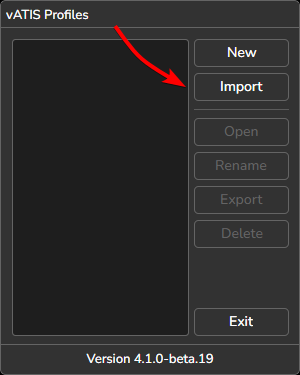
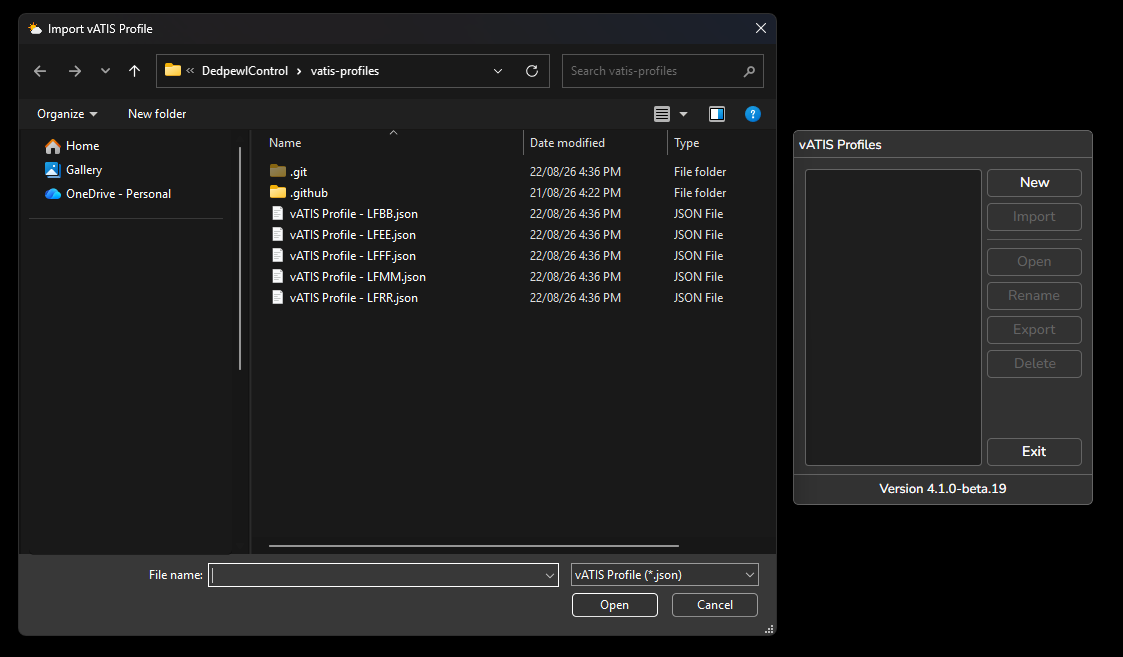
Once the profiles have been imported, no manual updates are required. vATIS will automatically retrieve and apply any profile updates whenever a new version is released.
¶ User Interface
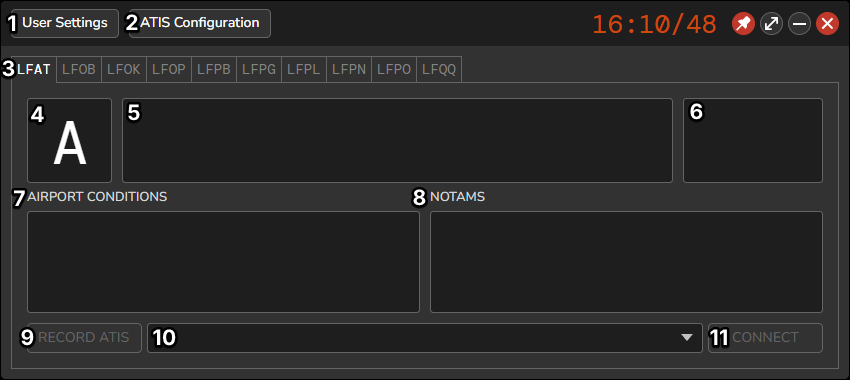
¶ 1. User Settings
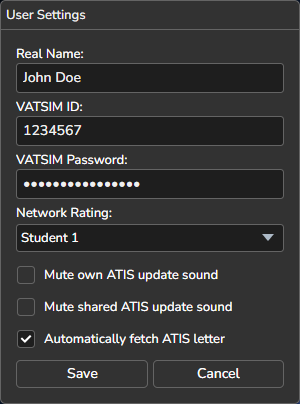
In the settings menu, enter your VATSIM credentials and controller rating. This is only required during the initial setup. You may also enable or disable sound notifications for updates to your own or shared ATIS.
¶ 2. ATIS Configuration
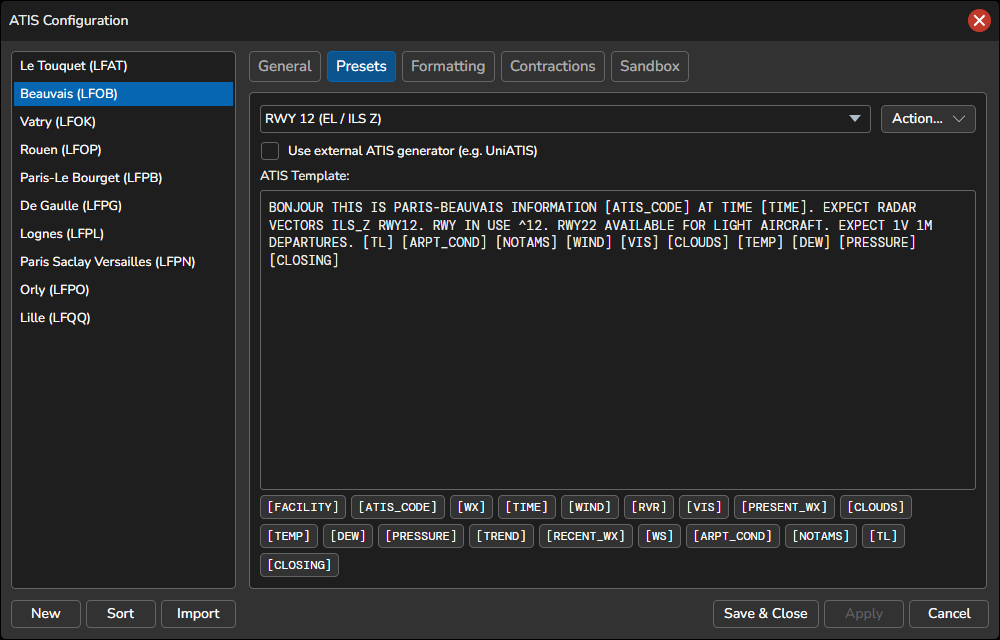
This menu contains all predefined ATIS configurations. Existing presets can be reviewed and modified from here.
¶ 3. Airport Selection
Once a profile is opened, the available airports are displayed in separate tabs identified by their ICAO codes. Select the airport for which you wish to connect an ATIS.
¶ 4. Current ATIS Letter
Left-click to advance the ATIS letter, or right-click to revert to the previous letter. This function may also be used to manually update or synchronize the ATIS letter for other controllers.
¶ 5. METAR
Displays the latest METAR for the selected airport as a raw METAR string.
¶ 6. QNH & Wind
Provides a quick overview of the current wind and QNH conditions at the selected airport.
¶ 7. Airport Conditions
Click the AIRPORT CONDITIONS header to access the predefined options. Any information added to this field will be included in the ATIS immediately after the runway information.
Controllers may also add custom free text to the ATIS by entering the required information directly in the Airport Conditions field.
¶ 8. NOTAMs
These predefined options are used to indicate specific operational conditions at the airport, such as whether Low Visibility Procedures (LVP), CDM, or PDC are currently active. Click the "NOTAMS" header to access the available options. Further details are provided below.
Controllers may also add custom free text to the ATIS by entering the required information directly in the NOTAM field.
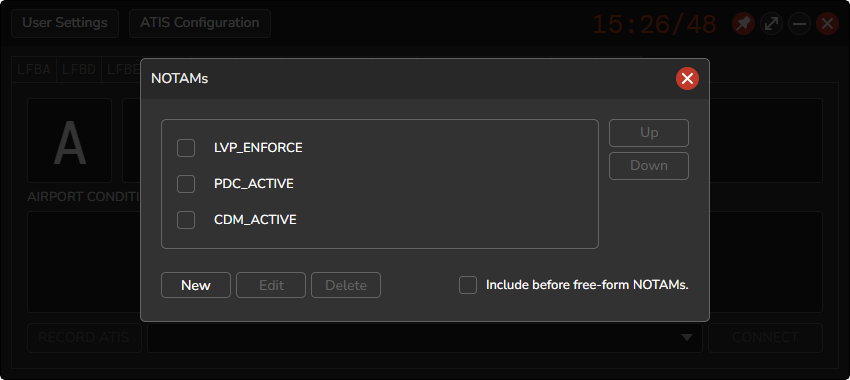
The following predefined operational conditions may be activated as required:
LVP_ENFORCE— Displays: “LOW VISIBILITY PROCEDURES ENFORCE.”PDC_ACTIVE— Displays: “DATALINK CLEARANCE AVAILABLE LF**”CDM_ACTIVE— Displays: “CDM OPERATIONS ACTIVE. SUBMIT TOBT AT CDM.VATSIM.FR.”The exact text associated with each option can be viewed and configured under ATIS Configuration → ICAO → Contractions.
¶ 9. Record ATIS
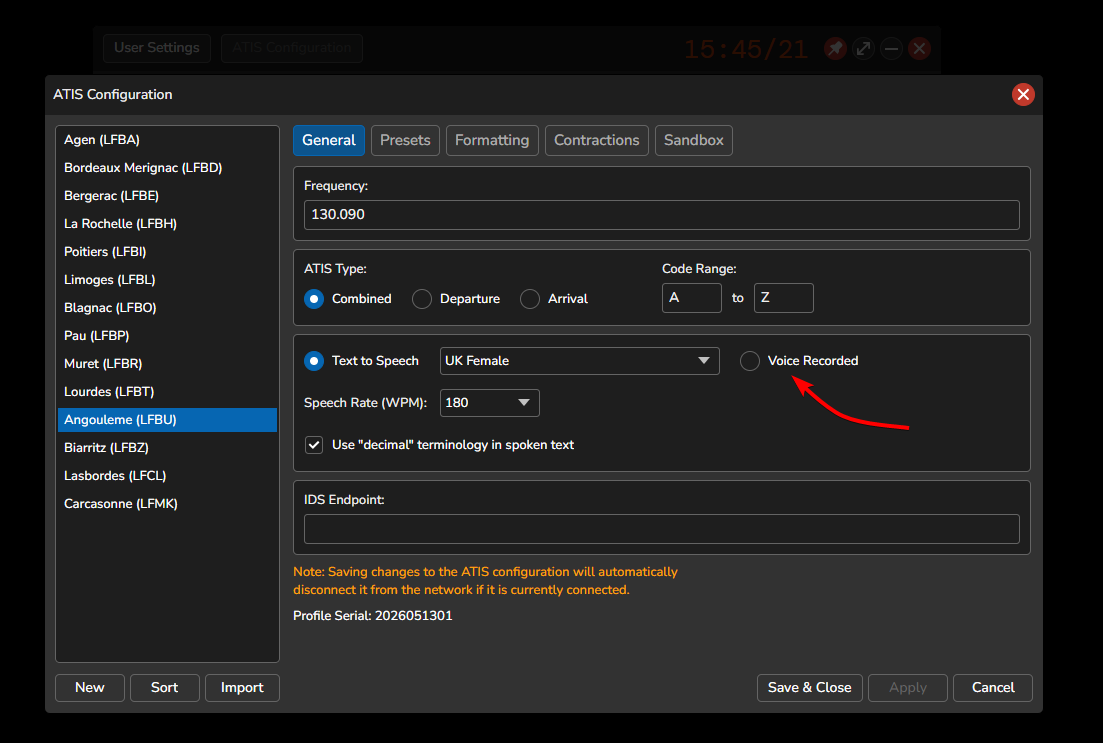
To record an ATIS manually, ensure that the ATIS station is configured to use voice recording.
-
Connect to the Network
- Click CONNECT to connect the ATIS station to the network.
- Select the appropriate ATIS letter.
-
Record the ATIS
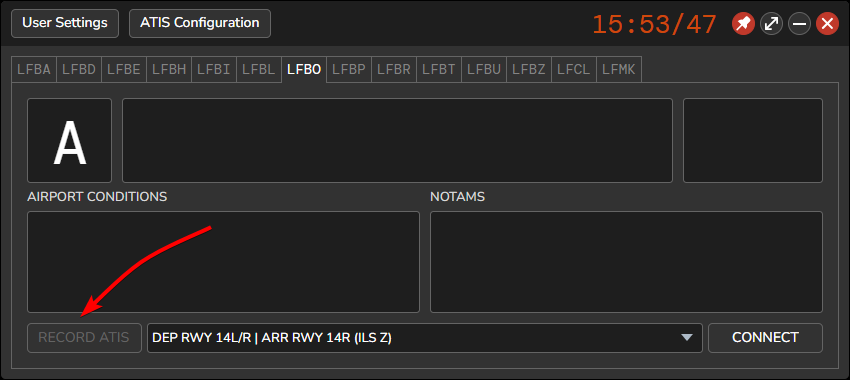
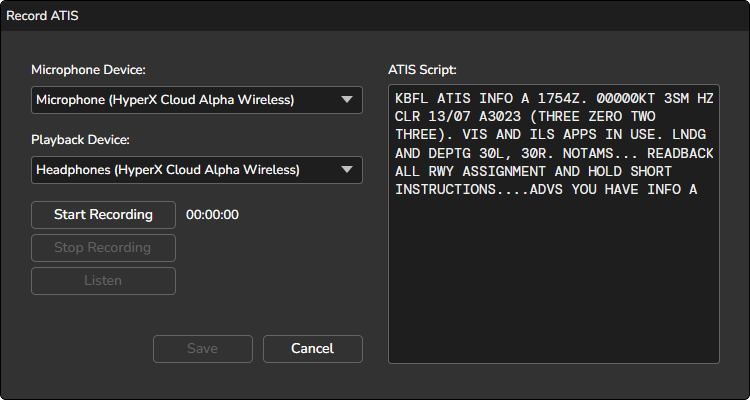
- Click RECORD ATIS to open the recording window.
- Select the microphone and playback devices to be used for recording and monitoring.
- Click Start Recording and read the ATIS message. Once complete, click Stop Recording.
-
Review the Recording
- Click Listen to preview the recorded ATIS.
- If required, repeat the recording process until satisfied.
-
Save and Transmit
- Click Save to confirm the recording.
- The recorded ATIS will then be transmitted on the network.
When a new METAR becomes available, the vATIS taskbar icon and ATIS letter will flash yellow. The ATIS shall then be updated by repeating the recording process with the latest information.
¶ 10. Selected Preset
Select the current runway configuration from the dropdown list to ensure the ATIS broadcasts the appropriate arrival and departure runways.
The available profiles include standard configurations used for normal day-to-day operations, as well as non-standard configurations that may be selected when an approach is unavailable, for example due to a NOTAM, should the controller wish to simulate such conditions.
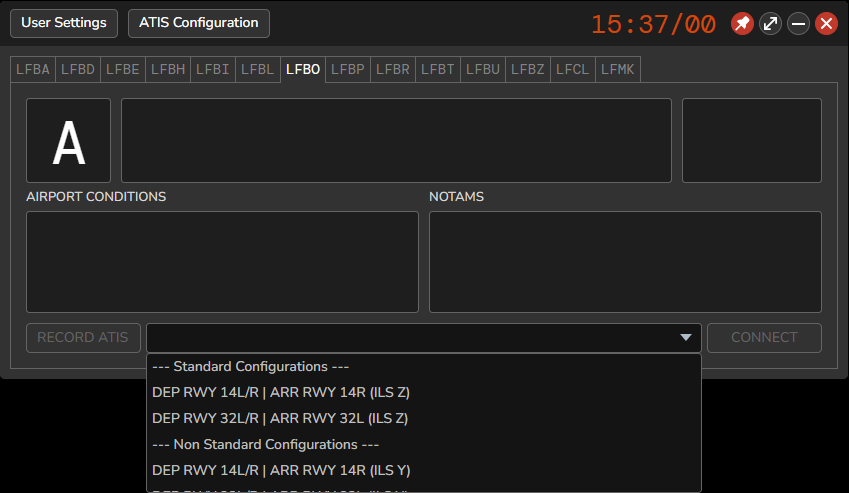
With the release of the new vATIS profiles, the manual text-based AIRPORT CONDITIONS field is no longer required to define runway configurations or associated operational information. All presets have been configured based on their corresponding real-world ATIS recordings or D-ATIS formats.
The required information is now integrated directly into each configuration preset and is automatically applied when the appropriate preset is selected. Controllers are therefore no longer required to manually enter this information in the AIRPORT CONDITIONS field.
Profiles are centrally maintained, and any relevant updates will be applied when vATIS is started.
¶ 11. Connect
To connect an ATIS for LFBO, select the relevant airport & preset, NOTAMs, and AIRPORT CONDITIONS. Once configured, click Connect to connect the ATIS to the network.
Repeat this process for any additional ATIS stations required during the session. Controllers may connect a maximum of four ATIS stations simultaneously.