
¶ Connecting as an Observer
This guide explains how to connect to VATSIM through EuroScope as an observer (OBS) and how to monitor an active ATC position using TrackAudio.
It also provides an overview of the essential EuroScope and CoFrance functions used during an observation session. For more detailed information, refer to the applicable software documentation.
Before continuing, complete the Controller Pack Installation Guide.
¶ Connecting to VATSIM
¶ Load a EuroScope Profile
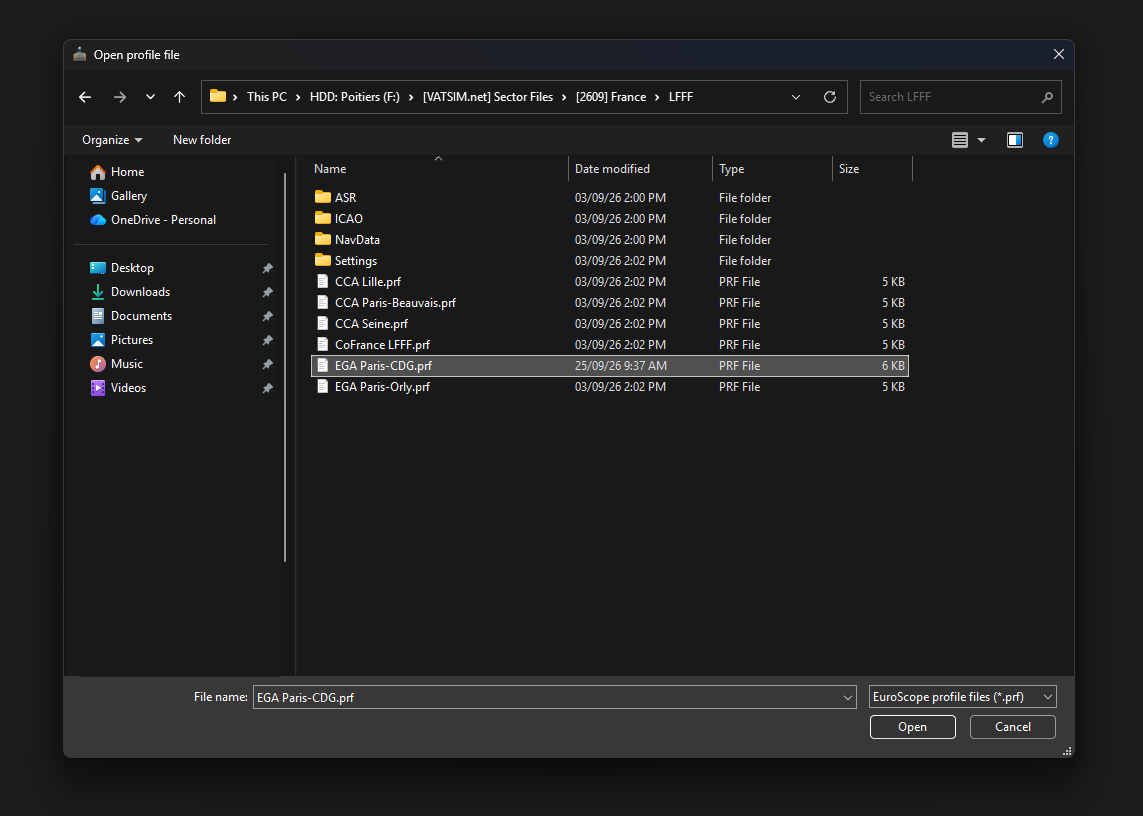
Start EuroScope and open the profile associated with the area or position you intend to observe, such as EGA Paris-CDG or CCA Nice.
¶ Configure the Connection
Select Connect in the upper-left corner of EuroScope to open the connection dialog.
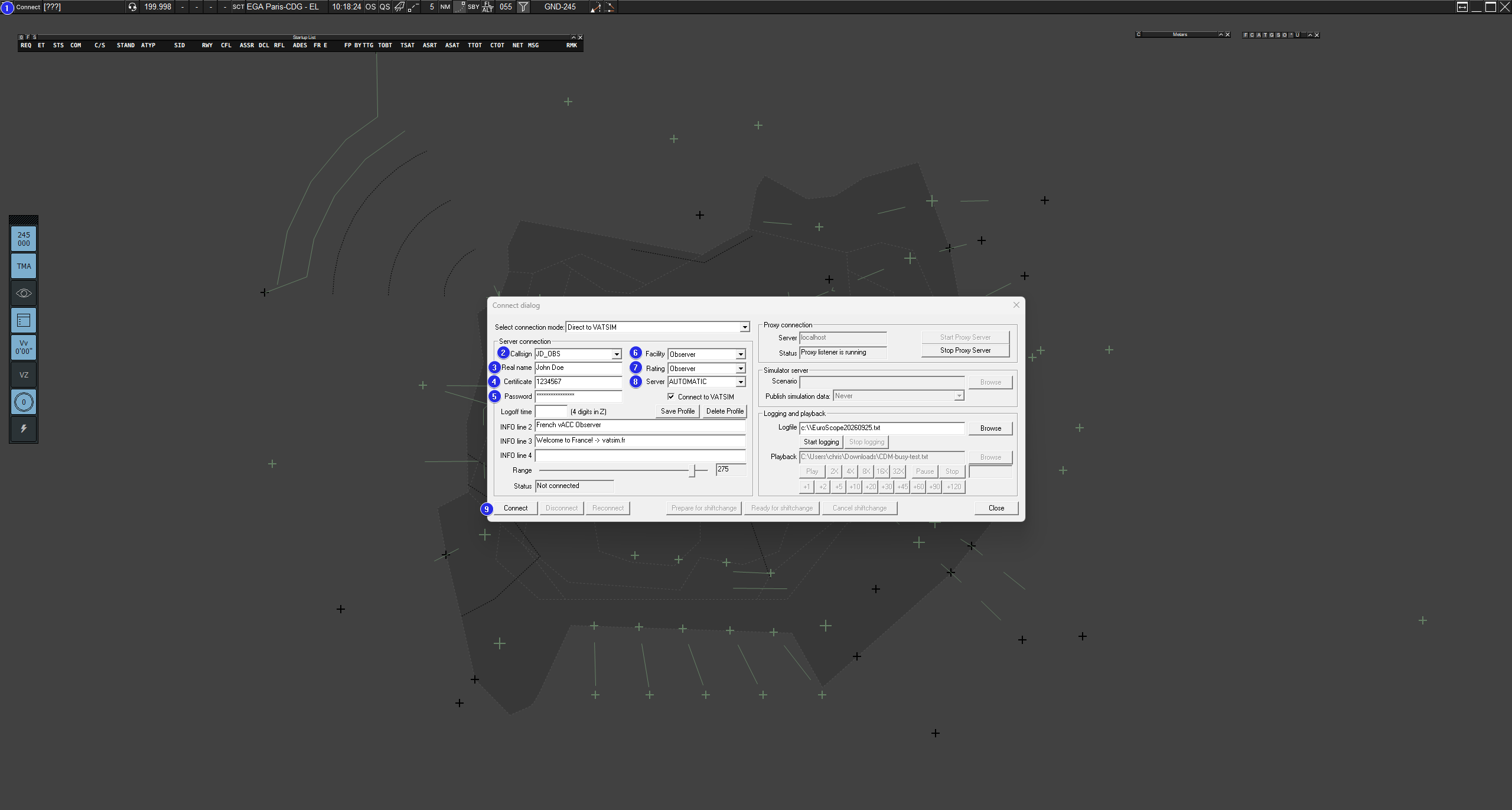
Complete the connection fields as follows:
- Open the Connection Dialog
- Enter an observer callsign using your initials followed by
_OBS, for exampleJD_OBS. - Enter your name in accordance with VATSIM Code of Conduct A4(b).
- Enter your VATSIM Certificate ID (CID).
- Enter your VATSIM password.
- Set Facility to Observer.
- Set Rating to your current VATSIM rating. Select Observer only if you do not hold an ATC rating.
- Set Server to AUTOMATIC.
- Select Connect.
Observer callsigns must end with the
_OBSsuffix. Observers shall not provide an air traffic control service.
¶ Set the Visibility Centre
Once connected, the connection dialog closes automatically. Aircraft within the selected visibility range should begin appearing on the radar display.
Set your visibility centre by entering .vis ICAO in the command line and pressing Enter. Replace ICAO with the code of the aerodrome being observed. For example:

¶ Select the Active Runways
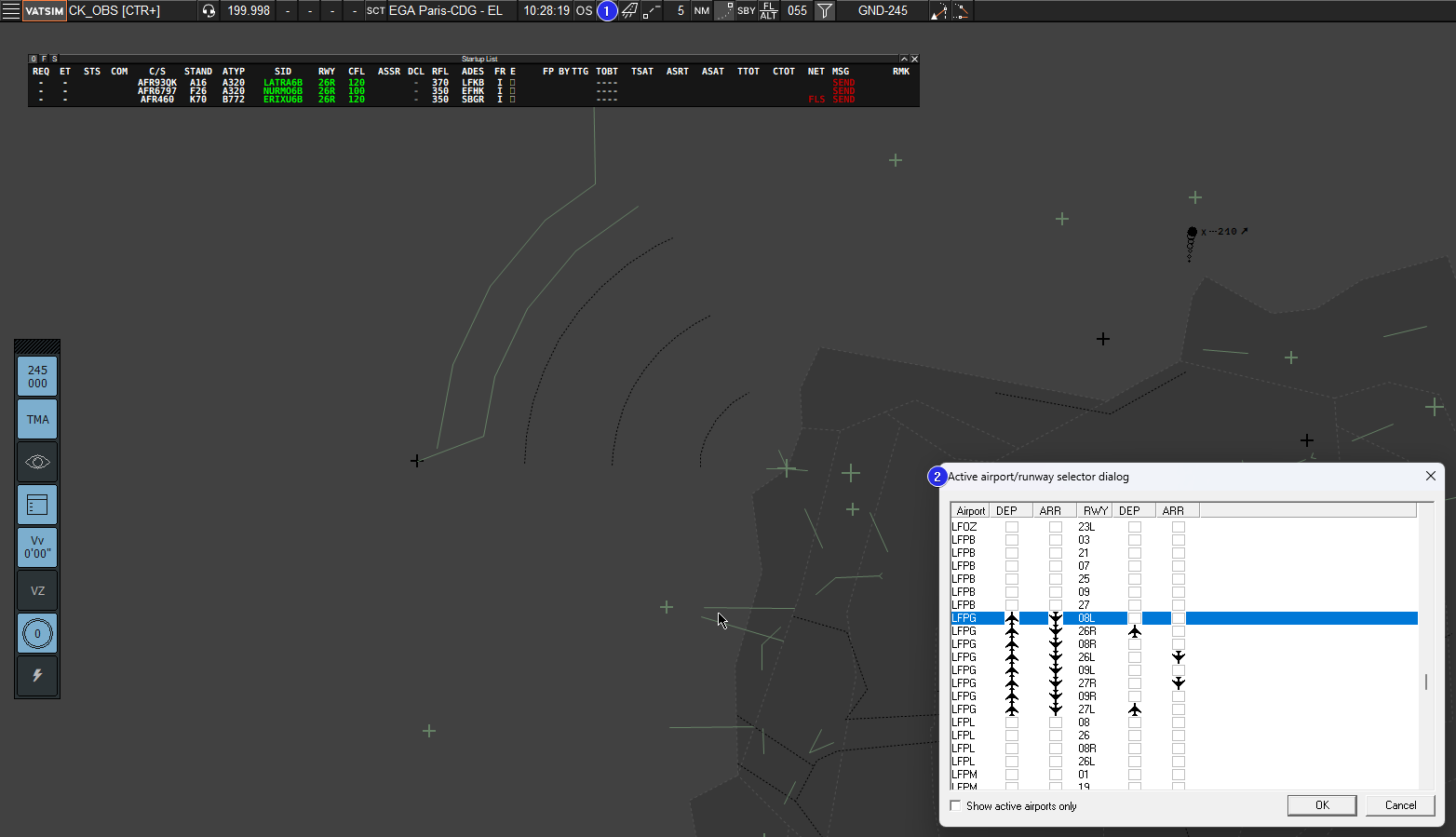
Open the Active Airport/Runway Selection dialog and select the active arrival and departure runways at the aerodrome being observed.
This allows EuroScope and the associated plugins to populate the relevant aircraft lists correctly.
Taxiways, stands, holding points and other detailed ground-map elements are displayed according to the current zoom level. Zoom in if these elements are not visible.
¶ Monitoring Active Frequencies
EuroScope requires a separate audio client to connect to the Audio for VATSIM service. This guide uses TrackAudio, the supported audio client for EuroScope.
¶ Connect TrackAudio
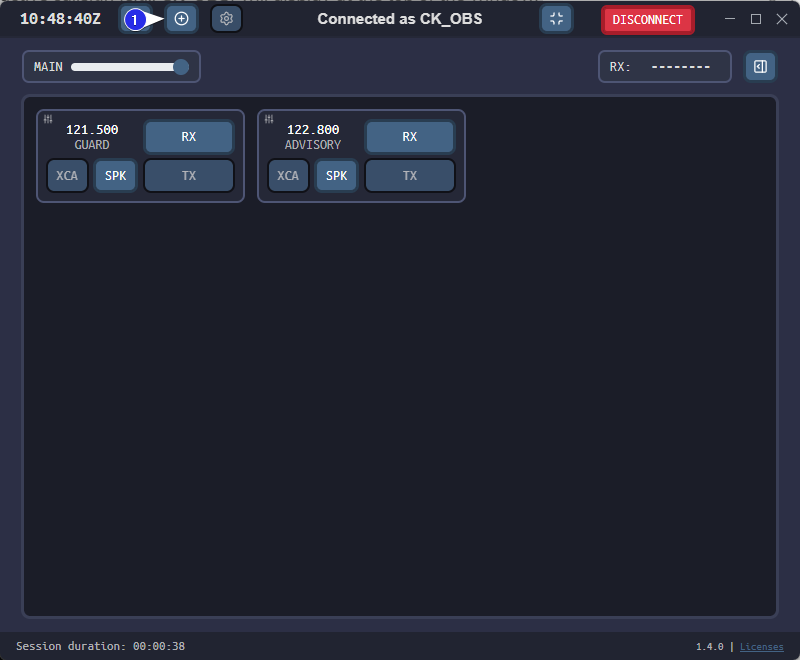
Open TrackAudio and select Connect. Your observer callsign, such as JD_OBS, will appear at the top of the window.
¶ Add a Station
To monitor an ATC frequency:
- Select the + button in the upper-left corner.
- Enter the station callsign, for example
LFPG_N_GND. - Select Add.
- Locate the station in the frequency list.
- Enable RX to receive transmissions.
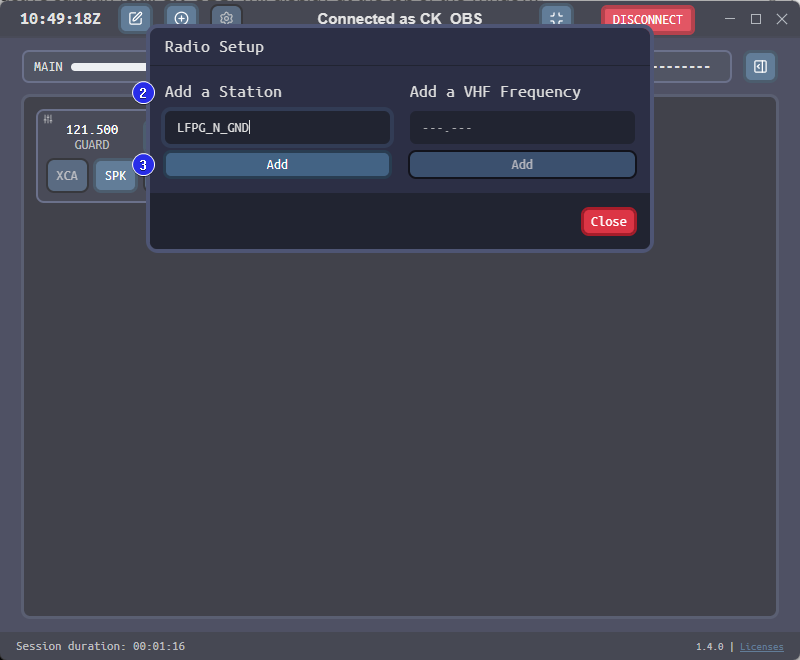
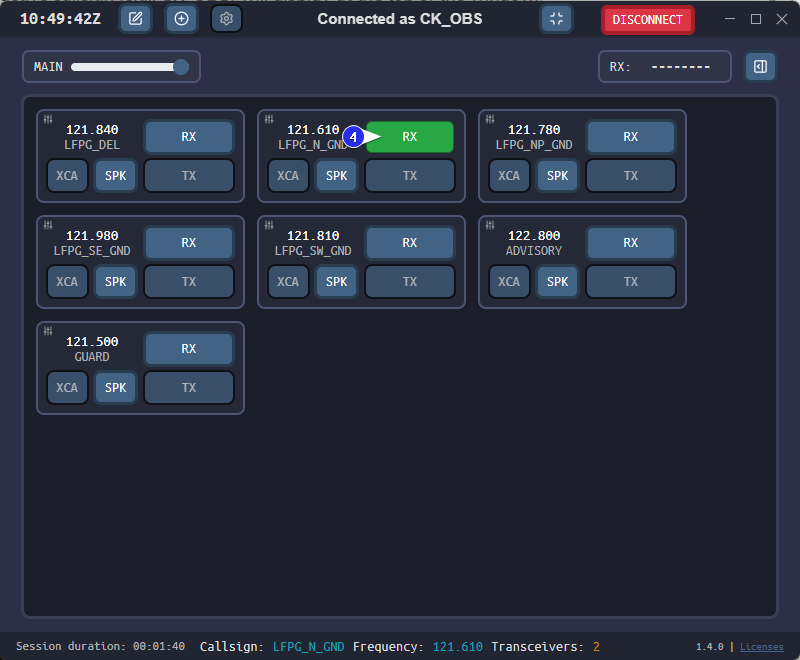
During a transmission:
- The RX indicator turns orange.
- The callsign of the most recent transmitting station or pilot appears at the top of the window.
To monitor another frequency, select + and repeat the procedure.
During an observation session, use receive (RX) only.
¶ Essential EuroScope Functions
Complete information about EuroScope is available in the official EuroScope documentation.
¶ Sector Menu
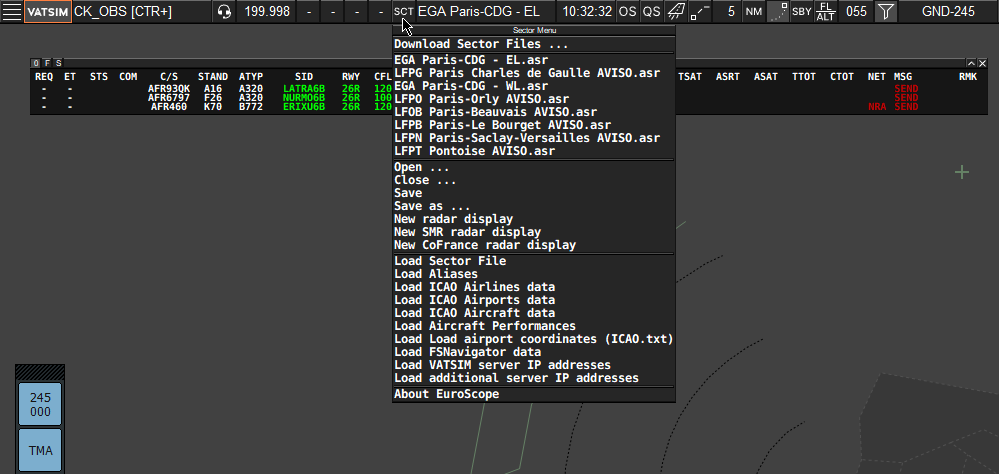
The Sector menu contains the main options for managing sector files and radar displays.
- Select OPEN to load a preconfigured ASR display from the
FIR CODE/ASRfolder. - Select Load Sector File to reload the
.sctfile containing the FIR navigation, aerodrome and airspace data.
¶ Other Settings Menu
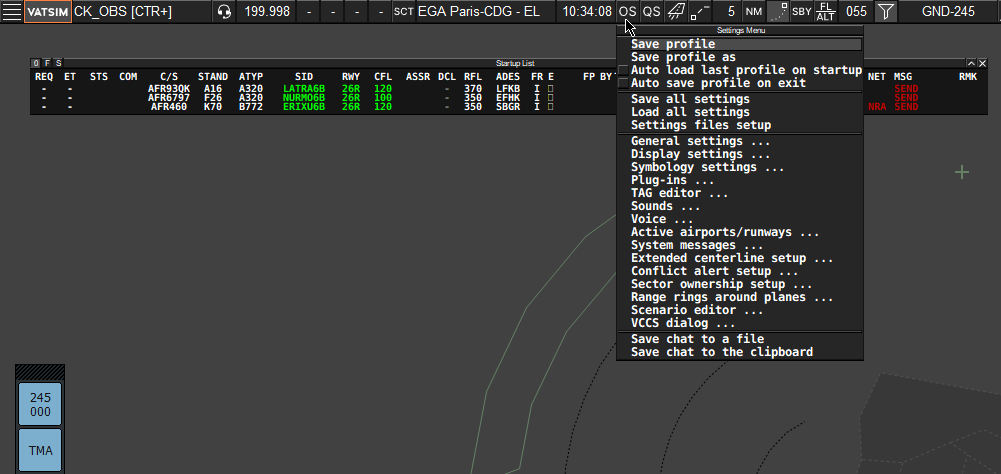
The Other Settings menu provides access to profile management and the main EuroScope configuration options. It can also be used to save the active profile (.prf) and current settings.
- General Settings — Page 1 — Configures display behaviour, aircraft tags and other general options.
- General Settings — Page 2 — Configures ASR display shortcuts, including combinations such as
F1+1,F1+2andF1+3. - Display Settings — Controls the elements displayed on the radar screen and the display rotation. When an ASR relies entirely on CoFrance Maps, some display options may be controlled by the map configuration instead.
- Symbology Settings — Configures EuroScope colours and symbols. Some symbology is controlled by plugins and cannot be modified through EuroScope.
- Plugins Dialog — Displays the plugins currently loaded in EuroScope.
- Active Airport/Runway Selection — Configures the active arrival and departure runways.
¶ Quick Settings Menu
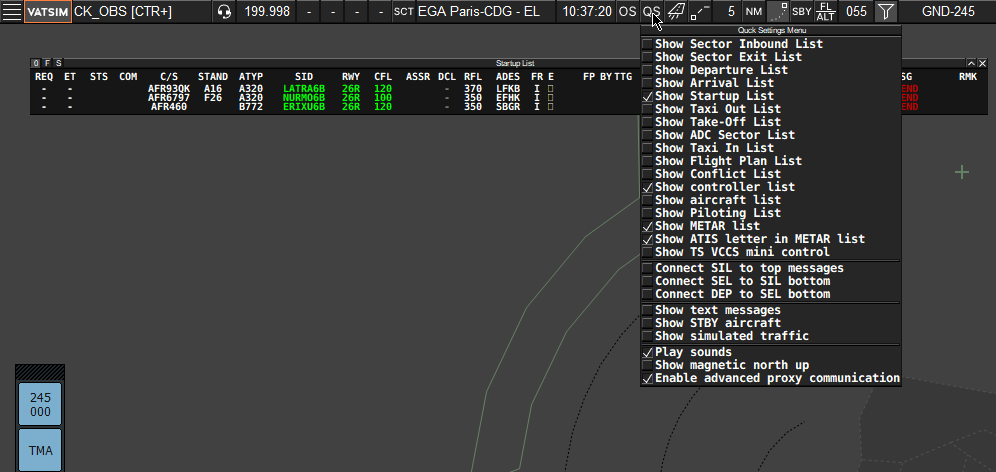
The Quick Settings menu controls which aircraft lists are displayed and provides access to their layout settings.
¶ Active Airport/Runway Selection
Use this dialog to select the active arrival and departure runways. It can also be opened by selecting the runway icon next to the Quick Set menu.
¶ Window Positioning
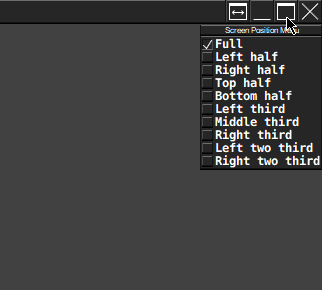
Right-click the EuroScope window’s maximize button to access the available window-positioning options.
¶ ASR Fast-Key Shortcuts
ASR shortcuts are configured separately for each EuroScope profile. Unless otherwise specified, the following standard assignments apply:
- F1 + 1 — Opens the main radar display.
- F1 + 2 — Opens the main radar display with VFR information.
- F1 + 3 — Opens the main radar display with minimum-altitude information, such as AMSR, AMG or MVA.
- F1 + 4 to 9 — Opens the configured aerodrome ground displays (AVISO).