
¶ vSMR (Virtual Surface Movement Radar)
The vSMR plugin simulates the NOVA 9000 Advanced Surface Movement Guidance and Control System (A-SMGCS) within EuroScope. It is designed to reproduce the surface movement radar displays used at airports such as LFPG, LFPO, LFLL, LFBO, and LFSB.
vSMR is installed and preconfigured by default with the Controller Pack and is used for all surface movement radar views. For simplicity, this guide uses the term AVISO (Aide à la VIsualisation SOl, French for “ground visualisation aid”) when referring to any surface movement radar display.
This guide covers the basic functions required when using vSMR for the first time. For more detailed information about the plugin and its features, refer to the official vSMR Wiki.
¶ Menu Bar
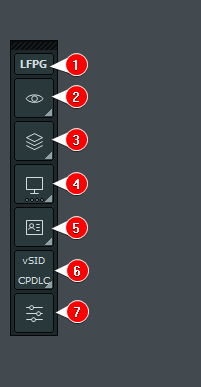
The vSMR menu provides access to the main display, configuration, and customisation options:
-
Airport ICAO — Select the active airport for the radar display. Right-click to access recently used airports.
-
Mode — Select a display mode from the active profile.
-
Groups — Show or hide the active airport’s AVISO groups for the current session.
-
Insets — Open and manage AVISO, SRW, Weather, Timer, and airport preset windows.
-
Profile — Select the active profile for the radar display.
-
vSID / PDC — Open the separate vSID and PDC panels.
-
Open Control Center — Open the main vSMR configuration window.
¶ Airport ICAO
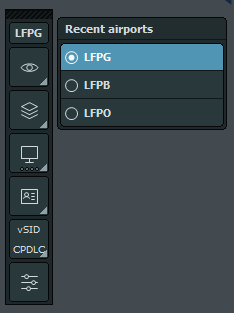
Select the ICAO field and enter the four-letter code of the required airport. Right-click the field to access up to five recently opened airports during the current session.
Selecting a different airport automatically centres the current AVISO display on that airport.
For more information, see the vSMR Wiki — Airport Menu.
¶ Mode
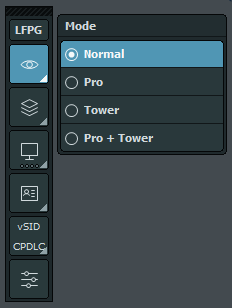
The Mode menu lists all display modes available in the active profile.
Selecting a mode changes the display settings, visible aircraft statuses, airborne display limits, and applicable colour rules.
For example, when Pro mode is selected, aircraft must use their assigned squawk code and be correctly correlated with their flight plan, when one exists.
For more information, see the vSMR Wiki — Modes.
¶ Groups
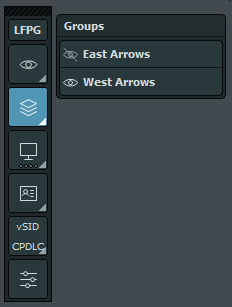
Groups are displayed in their configured order. Enabling or disabling a group affects both the main AVISO display and the AVISO inset for the current screen.
For example, at Paris Charles de Gaulle, taxi-routing arrows are displayed automatically according to the selected runway configuration.
For more information, see the vSMR Wiki — Groups.
¶ Insets
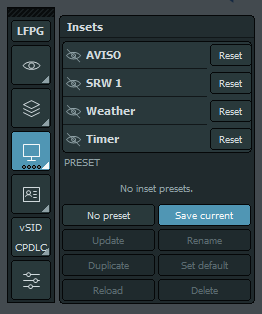
Use the eye icons to show or hide the AVISO, SRW, Weather, and Timer insets. A dot indicates that an inset is currently visible.
Select Reset to restore an inset’s default position and view without changing whether it is visible.
Inset presets are specific to the active airport:
- Select Save Current to save the current inset layout.
- Load the preset to check the saved arrangement.
- The selected preset and current inset layout are saved with the radar screen’s ASR file.
- Select No preset to clear the active preset and hide all insets.
For more information, see the vSMR Wiki — Insets and Presets.
¶ AVISO Inset
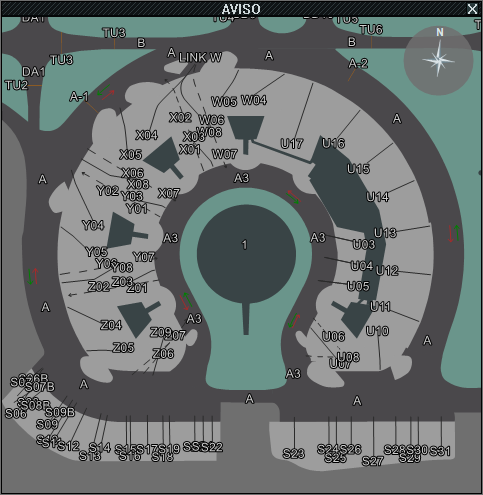
AVISO is a secondary view of the active airport map. It uses the same colours and visible groups as the main display.
Depending on the selected preset, AVISO will either:
- Follow the position and zoom level of the main display.
- Operate as an independent map.
Use the Insets menu to load a preset. Select No preset to close AVISO and clear the current layout.
Move the AVISO map by holding the right mouse button and dragging. Aircraft labels work in the same way as on the main display and provide access to functions such as runway, SID, flight plan, holding point, and scratchpad settings.
For more information, see the vSMR Wiki — AVISO.
¶ SRW Inset
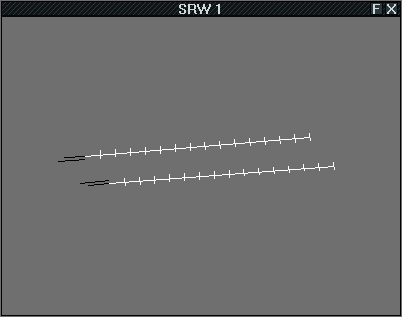
SRW provides a focused view of aircraft and vehicles operating near the airport surface. It uses the same targets, colours, labels, and RIMCAS alerts as the main display.
When SRW 1 is open as a separate window, select F in the title bar to set the altitude filter. If an aircraft is missing from the display, check that the selected filter is high enough.
Right-click an aircraft label to access EuroScope’s Assume and Handoff functions.
For more information, see the vSMR Wiki — SRW.
¶ Weather Inset
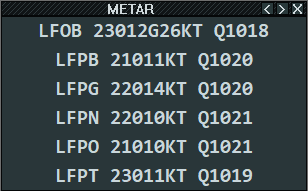

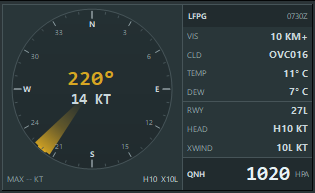
The Weather inset automatically adjusts to the size of its window:
- Large window: Displays the wind rose and full weather information.
- Medium window: Displays wind and QNH without the wind rose.
- Small window: Displays only the airport ICAO code, wind, and QNH, for example:
LFPG 03009KT Q1027.
The layout cannot be selected manually. Resize the window to show more or less information.
When space is available, the inset also displays visibility, clouds, temperature, dew point, wind variation, and runway wind components. The QNH is highlighted for easy identification, and the display automatically follows the selected day or night theme.
For more information, see the vSMR Wiki — Weather.
¶ Timer Inset

The Timer inset provides four separate countdown timers:
- 1M: One minute
- 2M: Two minutes
- 3M: Three minutes
- 4M: Four minutes
The timers are shared across all vSMR and CoFrance windows in the same EuroScope session. Starting or resetting a timer updates every open Timer inset.
Closing a window or changing views does not reset an active countdown. An alarm sounds when the timer expires.
The Timer inset has a fixed size but can be moved to any edge or corner of the display. It automatically follows the selected day or night theme.
For more information, see the vSMR Wiki — Timer.
¶ Presets
Inset presets save the position of all inset windows, allowing you to restore your preferred layout quickly.
To create a preset:
- Position the inset windows as required.
- Open Runtime Menu → Insets.
- Select Save Current.
- Rename the new preset.
- Load the preset once to confirm that the layout has been saved correctly.
For more information, see the vSMR Wiki — Insets and Presets.
¶ Profile
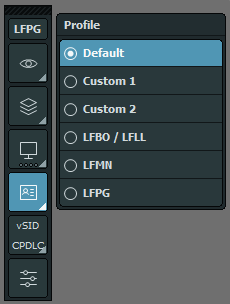
A profile controls how vSMR looks and behaves, including its symbols, aircraft labels, colours, display modes, trails, and alerts.
Changing the profile:
- Only affects the current radar screen.
- Does not change the selected airport or inset layout.
- Does not affect other open ASR displays.
Save the ASR file to keep the selected profile for future sessions.
The profiles for LFBO, LFLL, LFMN, and LFPG reproduce the real-world AVISO tag layout and behaviour.
For more information, see the vSMR Wiki — Profiles.
¶ vSID PDC
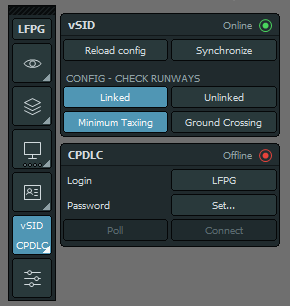
¶ vSID Panel
The vSID panel displays the active airport configuration and provides options to synchronise or reload it.
Airport and SID configuration is normally managed automatically by vSID. vSMR does not change or lock the runways selected in EuroScope.
For setup instructions and further information, see the vSID - Controller Guide.
¶ PDC Panel
The PDC panel allows you to enter your Hoppie login details and connect to the data-link network.
Your credentials are saved, but PDC starts disconnected whenever the plugin loads. Select Connect at the beginning of each session. Login details cannot be changed while the system is connecting or connected.
Keep your Hoppie code private. Do not include it in screenshots or bug reports.
For setup instructions and operating procedures, see the Pre-Departure Clearance Guide.
¶ Control Center
This guide only covers the essential Control Center features required for normal controller use. Most options in this menu are intended for advanced configuration and customisation.
For further information, see the vSMR Wiki — Control Center.
Custom configurations that differ from those supplied with the official Controller Pack are not supported. Any changes are made at your own risk.
¶ Changing AVISO Color Scheme
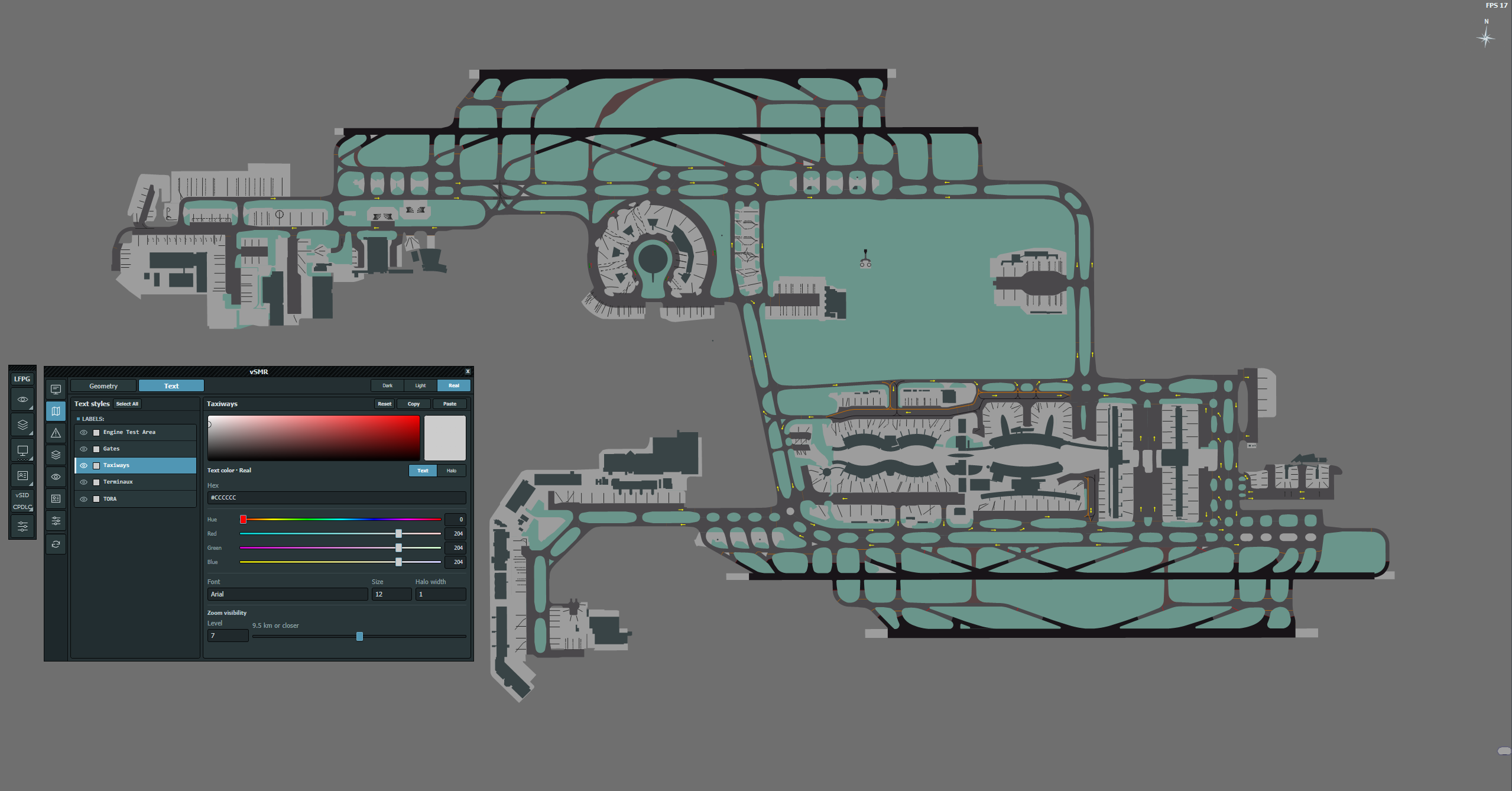
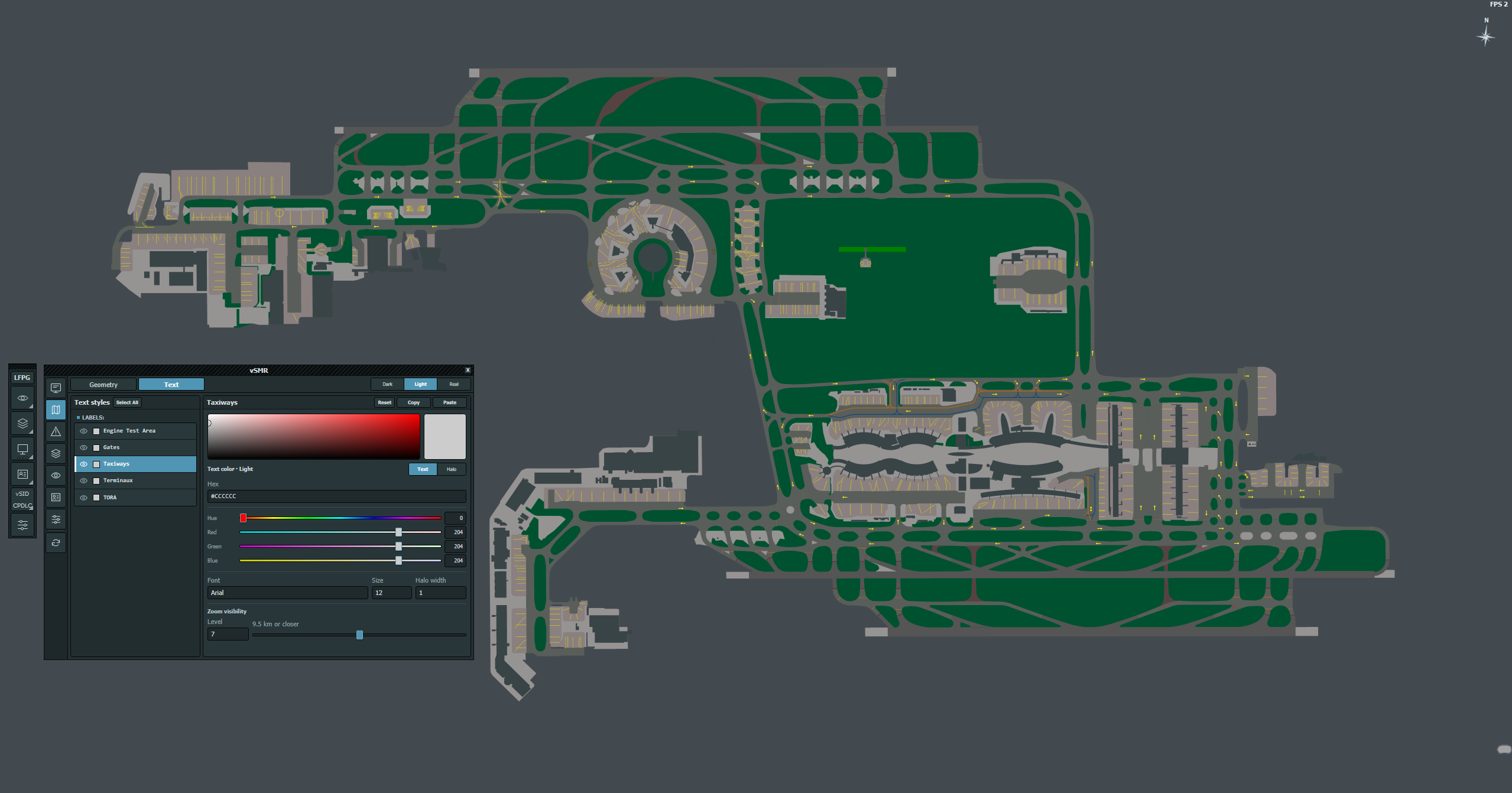
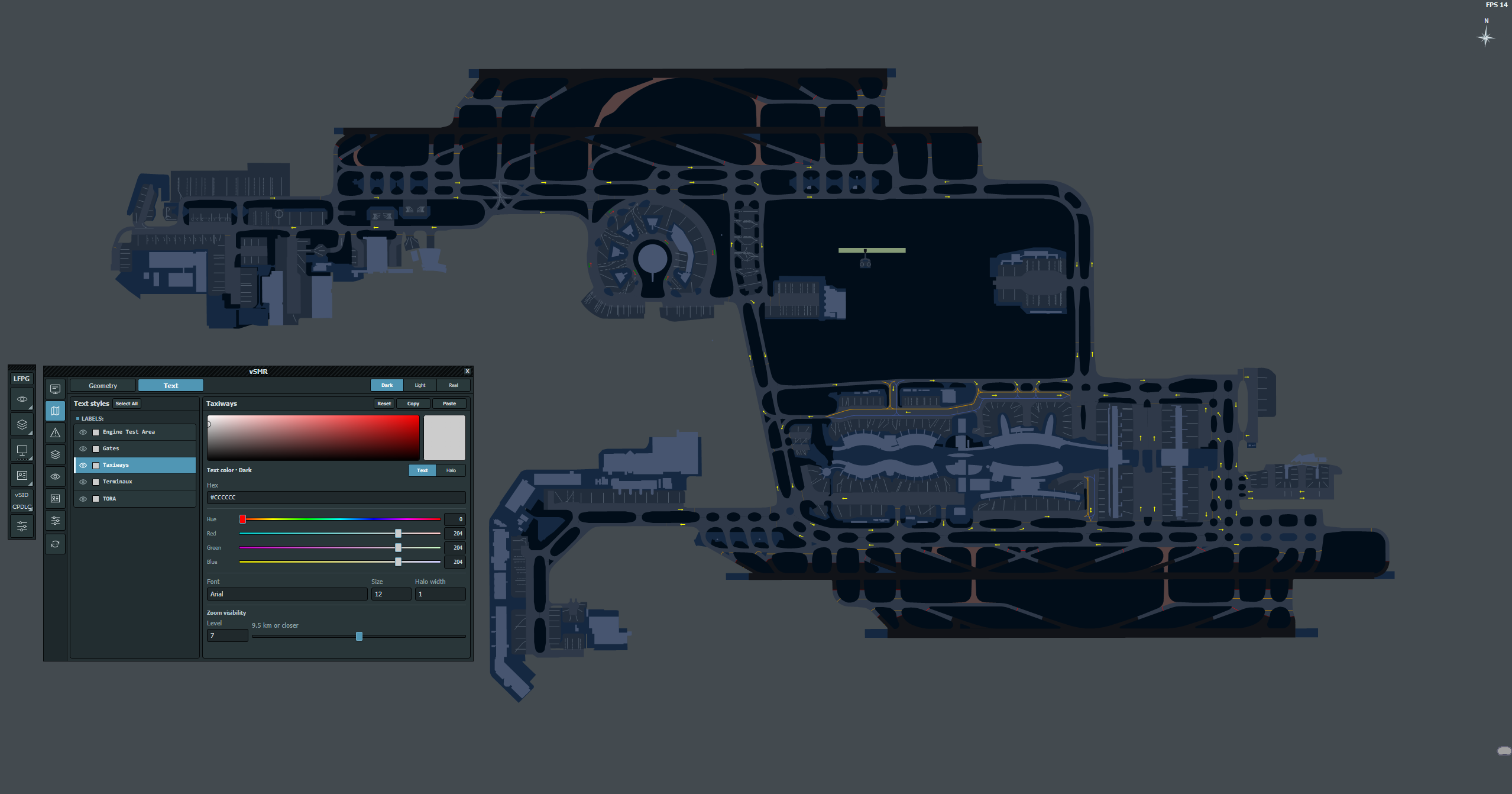
Select the required AVISO map colour scheme:
- Dark
- Light
- Real, where available
Dark and Light are available for all airports. The Real palette is currently available for LFBO, LFLL, LFML, LFMN, LFPG, LFPO, and LFSB and is designed to resemble the displays used at those airports.
Unavailable options are disabled. When changing airports, vSMR automatically selects an available palette if the current one is not supported.
Changing the palette only changes the map colours. Airport layouts, labels, and groups remain unchanged. The main AVISO display and AVISO inset always use the same palette.
The map palette is separate from the vSMR Day/Night interface theme.
¶ UI Theme
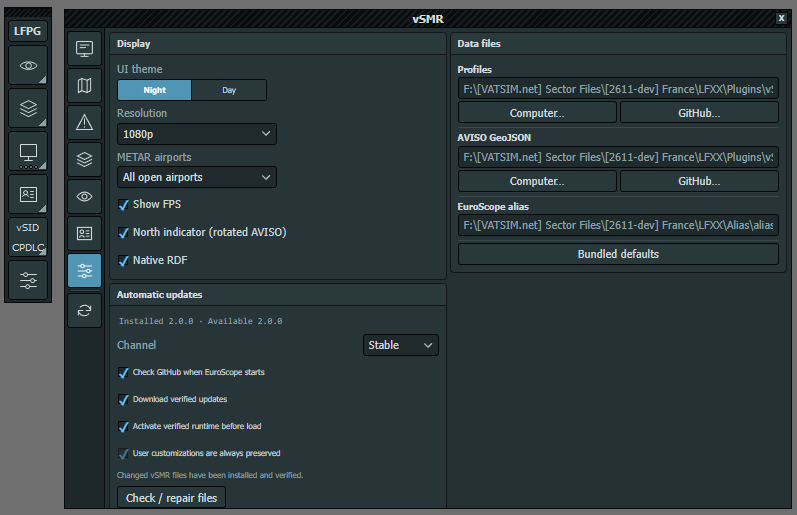
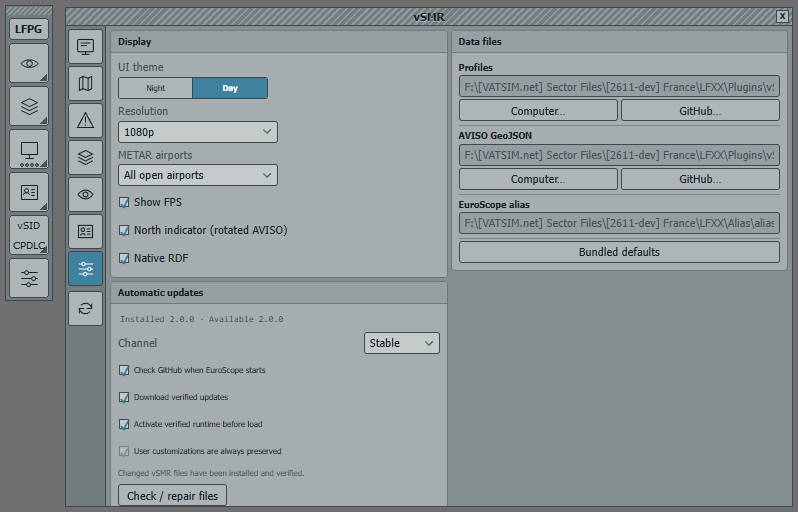
Select Night or Day to change the colours of the vSMR menus, Control Center, and inset windows.
This setting does not change the AVISO map palette. The Dark, Light, and Real map palettes are selected separately.
¶ Display Resolution
Select the preset that matches your screen resolution:
- 1080p: 100% display scale
- 2K: 133% display scale
- 4K: 200% display scale
The resolution setting adjusts the size of aircraft symbols, trails, labels, tags, and map lines, including those displayed in radar insets.
It does not change the radar zoom or resize menus, window controls, the Weather inset, or the Timer inset.
The selected resolution is saved with the active profile.
¶ Using Aircraft Tags
vSMR integrates with vSID and the CDM plugin, allowing most ground-control actions to be completed directly from the aircraft tag. Once an aircraft begins moving, controllers should normally be able to manage it without keeping several lists open.
During busy periods, hide any lists that are not required and keep only those relevant to your position:
- Delivery: Start-up List
- Apron and Ground: Taxi-Out List
- Tower: Taxi-Out List and Take-Off List
This reduces screen clutter while keeping the required information available through the aircraft tags.
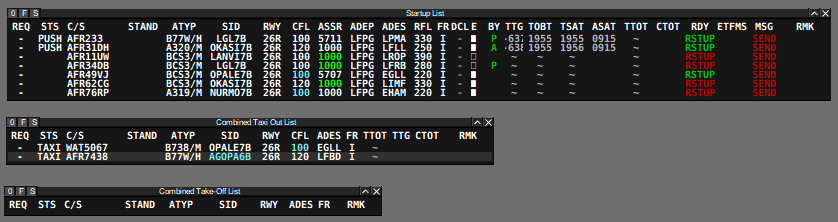
Aircraft automatically move between these lists as their status changes:
- When an aircraft’s status changes to Taxi, it is removed from the Start-up List and added to the Taxi-Out List.
- When its status changes to Departure, it is removed from the Taxi-Out List and added to the Take-Off List.
This automatic movement only applies to the lists described above. The Departure List remains the main all-in-one view and continues to display all relevant departures.
¶ Assigning Holding Points
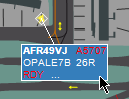
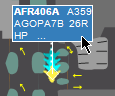
To assign a holding point, left-click the HP item in the aircraft tag and select the required holding point for the active runway configuration.
The selected holding point is shared with all controllers, helping everyone maintain the same view of the planned taxi sequence.
¶ Setting up an AVISO on a CoFrance Display
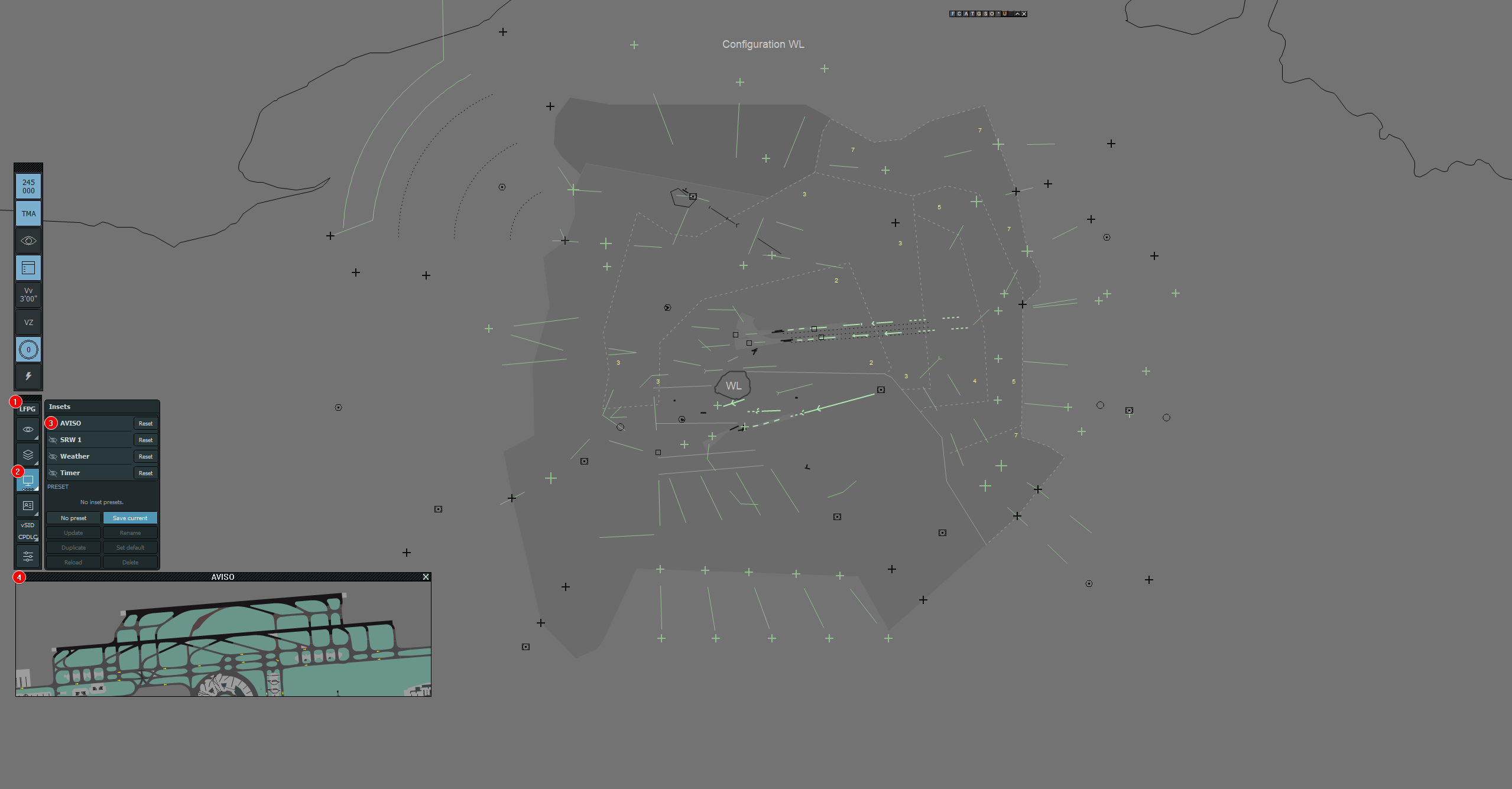
Controllers can display an AVISO inset while using a CoFrance v2 radar screen:
- Enter the required airport ICAO code in the vSMR menu.
- Open the Insets menu.
- Enable the AVISO inset.
- Move and resize the inset to create your preferred layout.